Magnus Reader
Magnus Reader will add high-quality human-sounding speech to Sensory Magnus for Windows, reading any accessible text under your mouse pointer in documents, web pages and PDFs. Coming soon, not yet released.
Method 1 — Play Button on Speech Toolbar
In Word, Notepad, Edge and other applications, click where you want reading to start, then press the Play button on the Magnus Speech Toolbar.
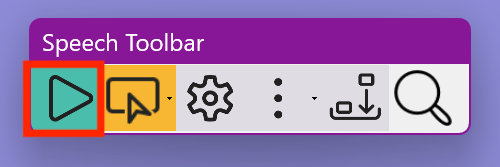
The Play button on the Magnus Speech Toolbar.
Magnus continues speaking until you press Stop or press the Ctrl key.
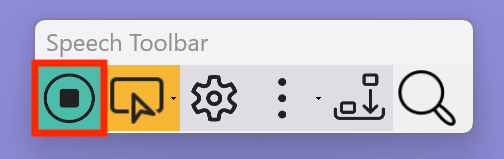
The Stop button on the Magnus Speech Toolbar.
Method 2 — Select Text to Speak
Select any accessible text with your mouse and Magnus will speak it automatically (Speak on Select). This can be turned off in Speech Settings if not needed.
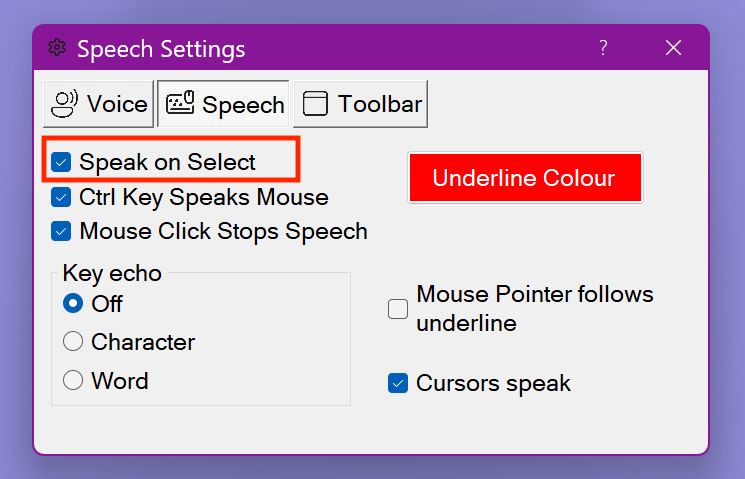
The "Speak on Select" option in Magnus Speech Settings.
Magnus can also underline-highlight the spoken word in Word, WordPad, Edge and more. To stop: press Stop on the toolbar, press Ctrl, or left-click your mouse.
Method 3 — Ctrl Key + Mouse Move
Hold Ctrl and nudge your mouse pointer — Magnus will speak the text at that position. Press Ctrl again to stop.
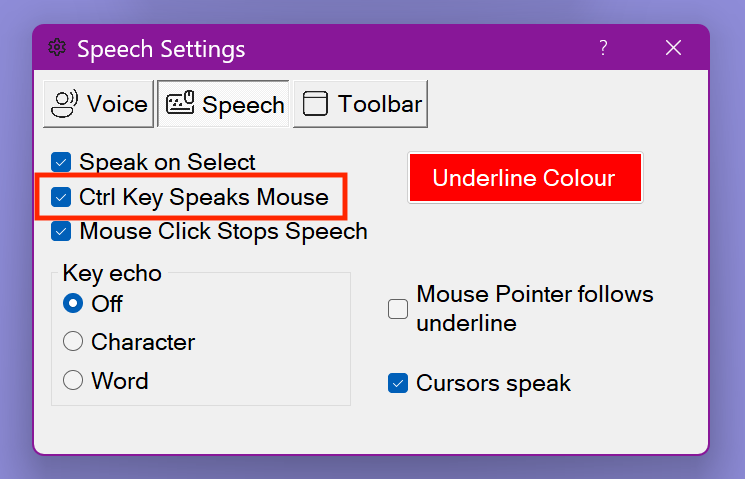
The "Ctrl+Move Cursor to Speak" option in Magnus Speech Settings.
Set how much text is spoken per nudge — word, line, paragraph, or full document:
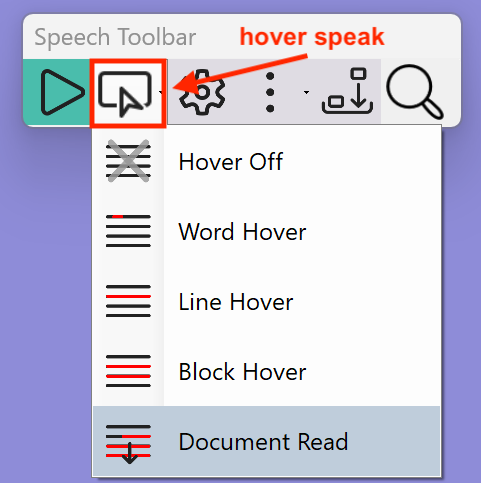
Hover section settings — word, line, block, or full document reading.
Method 4 — Keyboard Cursor Keys
When in a text editor like Word or Notepad, cursor keys control reading:
| Key | Action |
|---|---|
| ↓ Down Arrow | Speak the whole current line |
| Ctrl+→ | Read one word at a time |
Speech toolbar settings
When Magnus Reader is released, click the settings cog icon on the Magnus Speech Toolbar to open the settings.
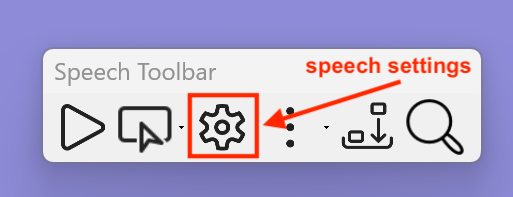
The Speech Toolbar settings panel, opened via the cog icon.
Tab 1 — Voice Settings
Choose your text-to-speech voice and adjust reading speed and volume.
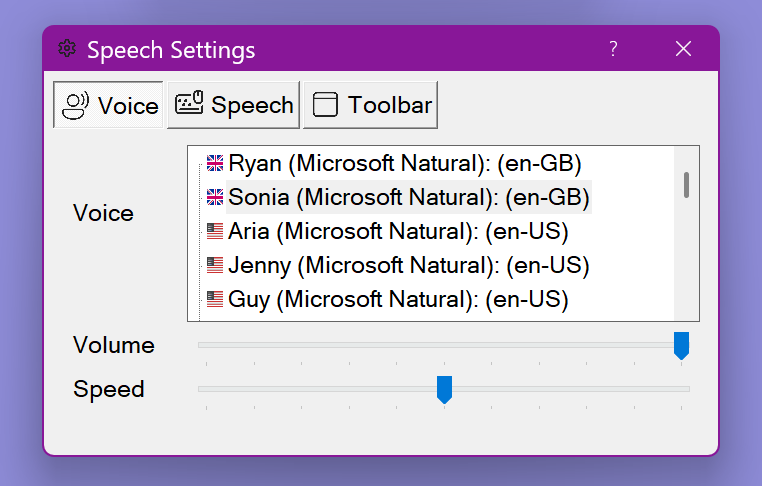
The Voice settings tab — choose voice, speed, and volume.
Tab 2 — Speech Control Settings
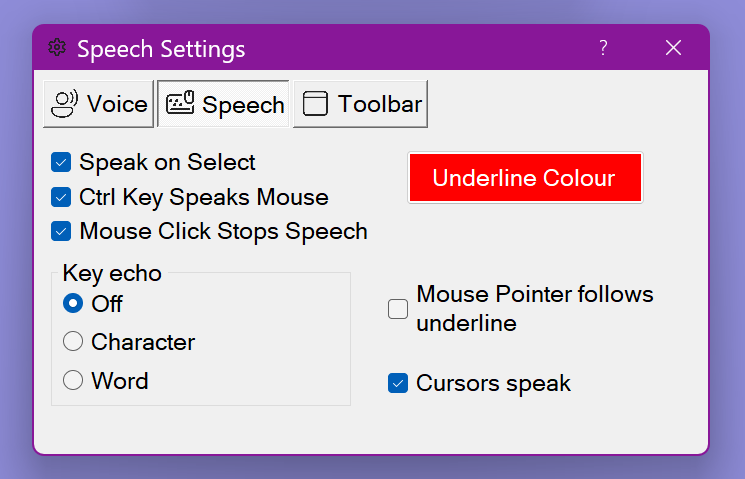
The Speech Control settings tab.
- Speak on Select — speaks text automatically when you select it with the mouse.
- Ctrl Key Speaks Mouse — hold Ctrl and move the mouse to speak text at that position.
- Mouse Click Stops Speech — when on, a left click stops speech.
- Underline Colour — changes the colour of the word highlight shown under the spoken word.
- Mouse Pointer Follows Underline — the mouse follows the underline highlight, so the magnified view scrolls with the words being read.
- Cursors Speak — allows keyboard cursor keys to control reading in text editors.
Tab 3 — Toolbar Display Settings
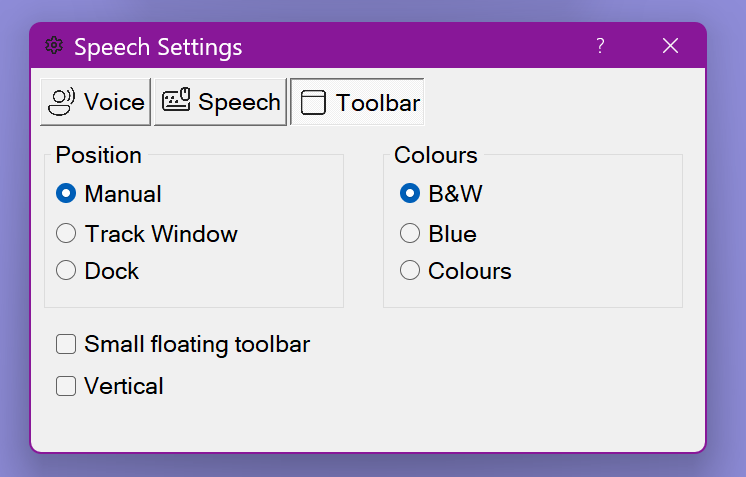
The Toolbar Display settings tab.
Colour
The Speech Toolbar can be shown in black and white, light blue, or full colour:
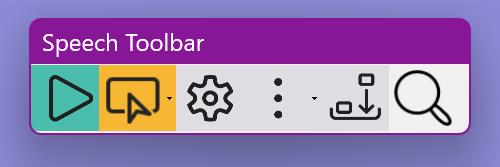
The three toolbar colour options.
Position
- Manual — drag the toolbar anywhere on screen
- Lock to active window — attaches to whichever window is currently in use
- Docked — pinned to the top left corner, horizontally or vertically
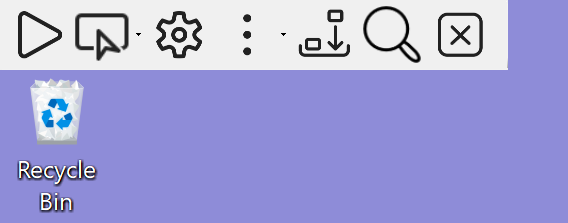
The Magnus Speech Toolbar docked to the screen edge.