A screen magnifier is software that enlarges part or all of what is on a computer, tablet or phone screen, so that text, icons and images are easier to see. It is one of the most widely used types of assistive technology for people with low vision, and it is also useful for anyone who finds small on-screen text tiring to read.
Unlike simply zooming a web page, a screen magnifier works across everything on screen: menus, documents, PDFs, email, dialogs and the mouse pointer, and it follows what you are doing so the enlarged area moves with your mouse, your typing or the keyboard focus.
Who uses a screen magnifier?
- People who are partially sighted or have low vision, including many people registered as sight impaired, who find standard-size text hard to read comfortably. Some people registered as severely sight impaired who still have some useful sight also use magnification, often alongside speech.
- People with age-related changes in vision who find small print on screen harder to read than it used to be.
- People with visual stress or dyslexia, who often combine magnification with colour tints to make reading more comfortable.
- Anyone working with detail, such as spreadsheets, diagrams or small user-interface text, or presenting a screen to a room.
If your sight has changed recently, have it checked by an optometrist first. If you have ongoing sight loss, your eye clinic or a local sight-loss charity can arrange a low-vision assessment, which can recommend the right mix of magnification, lighting and other aids.
The main types of magnifier view
Most magnifiers offer several ways of showing the enlarged view. Different views suit different tasks, and many people switch between them during the day.
Full screen
The whole screen is magnified and moves as you move the mouse. It gives the biggest, most immersive view, but you only see a part of the page at a time, so it is easy to lose your place.
Lens
A magnified window follows the mouse pointer like a handheld magnifying glass, leaving the rest of the screen unmagnified. It is good for dipping into detail while keeping an overview.
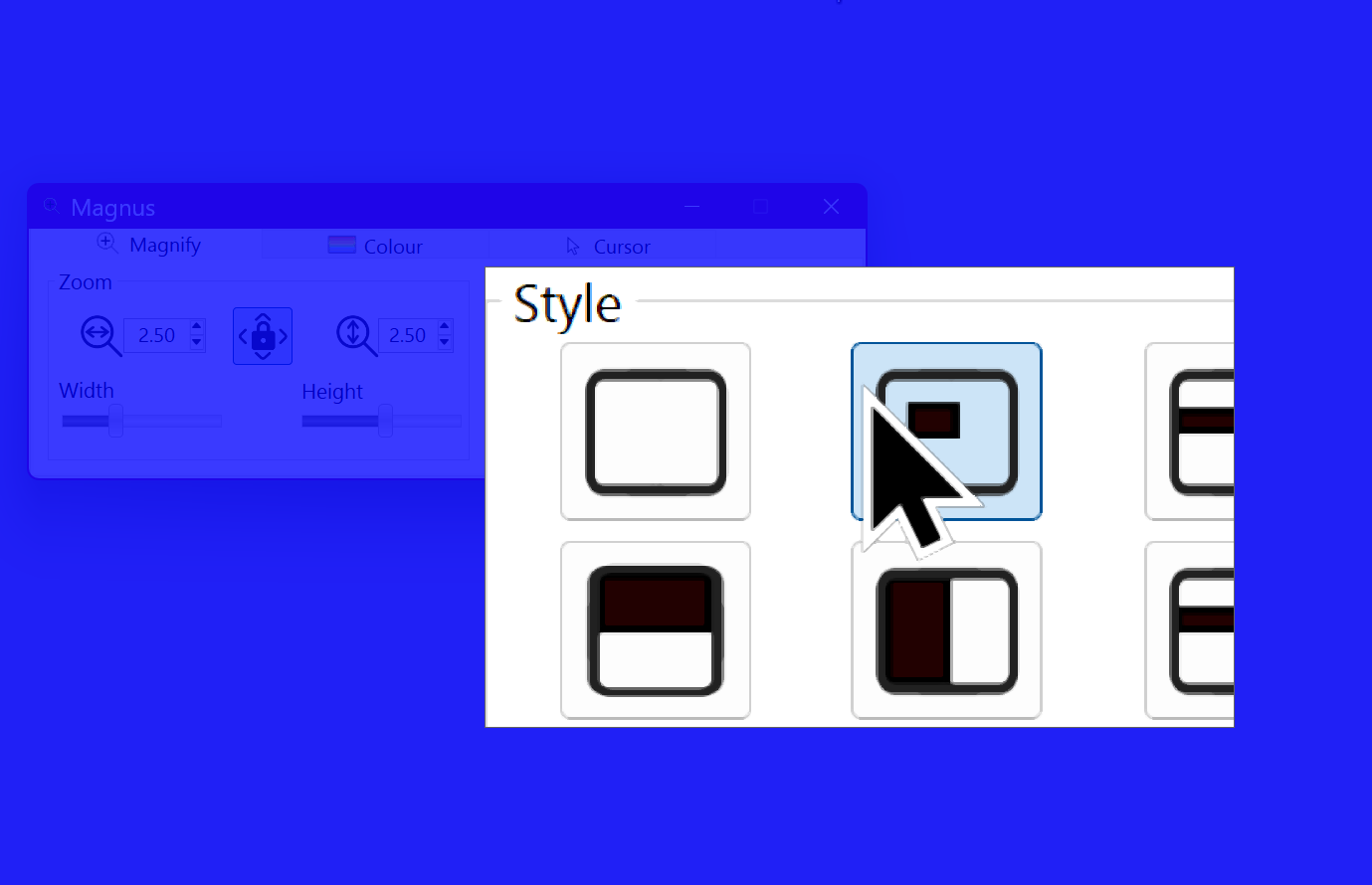
A lens view in Sensory Magnus, with a contrast tint outside the lens to reduce distraction.
Docked or split screen
The screen is divided: one part shows the magnified area under the mouse, and the other shows the page unmagnified. This is very useful for long documents and PDFs because you can see where you are in the page while reading the enlarged text.
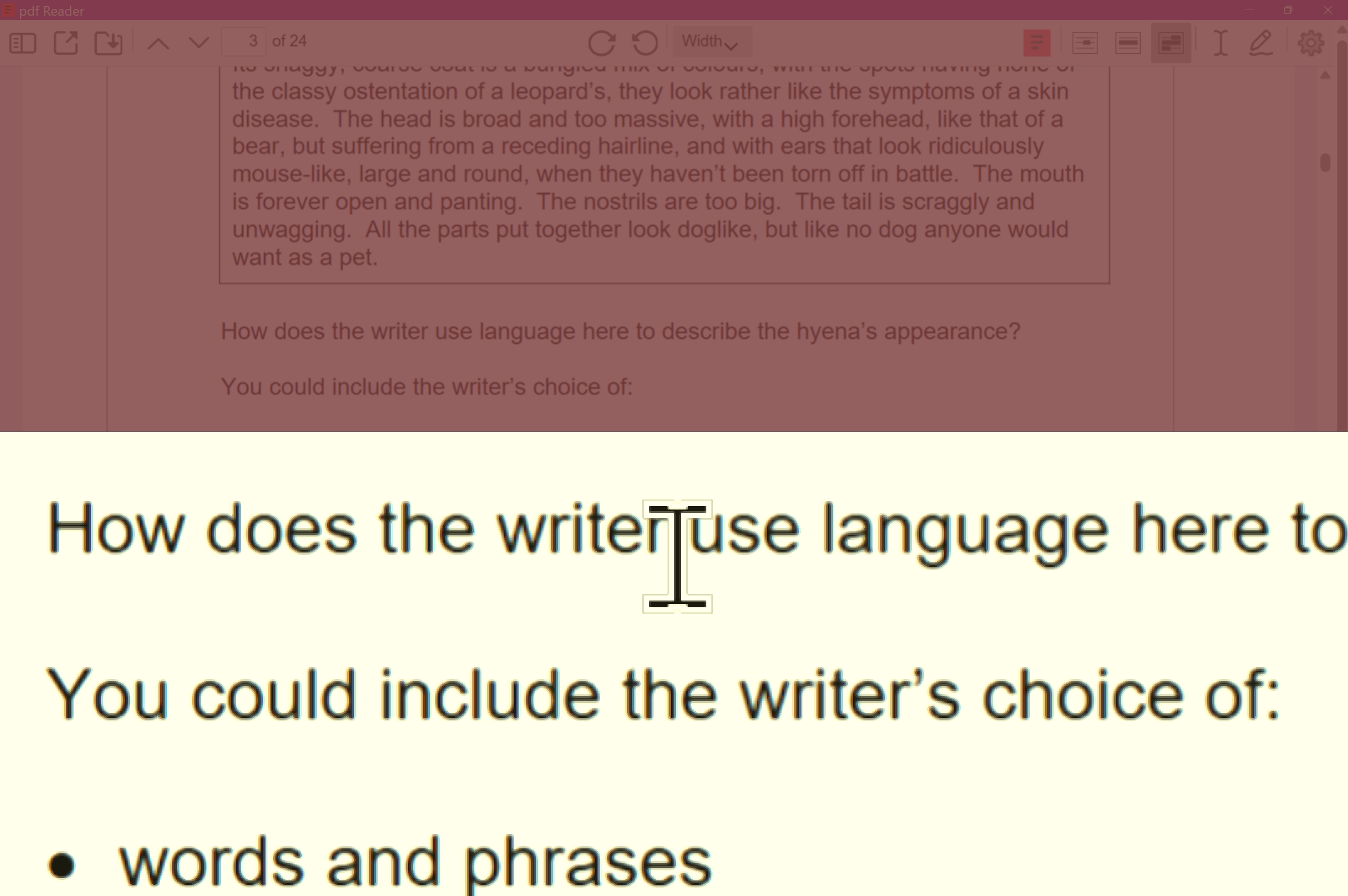
A horizontal split screen in Sensory Magnus: the magnified view above, the unmagnified page below.
Ruler or line view
A magnified horizontal strip follows the mouse up and down, so you read one or two lines at a time. The area above and below can be dimmed or tinted. This works like a reading ruler or typoscope and helps many people keep their place.
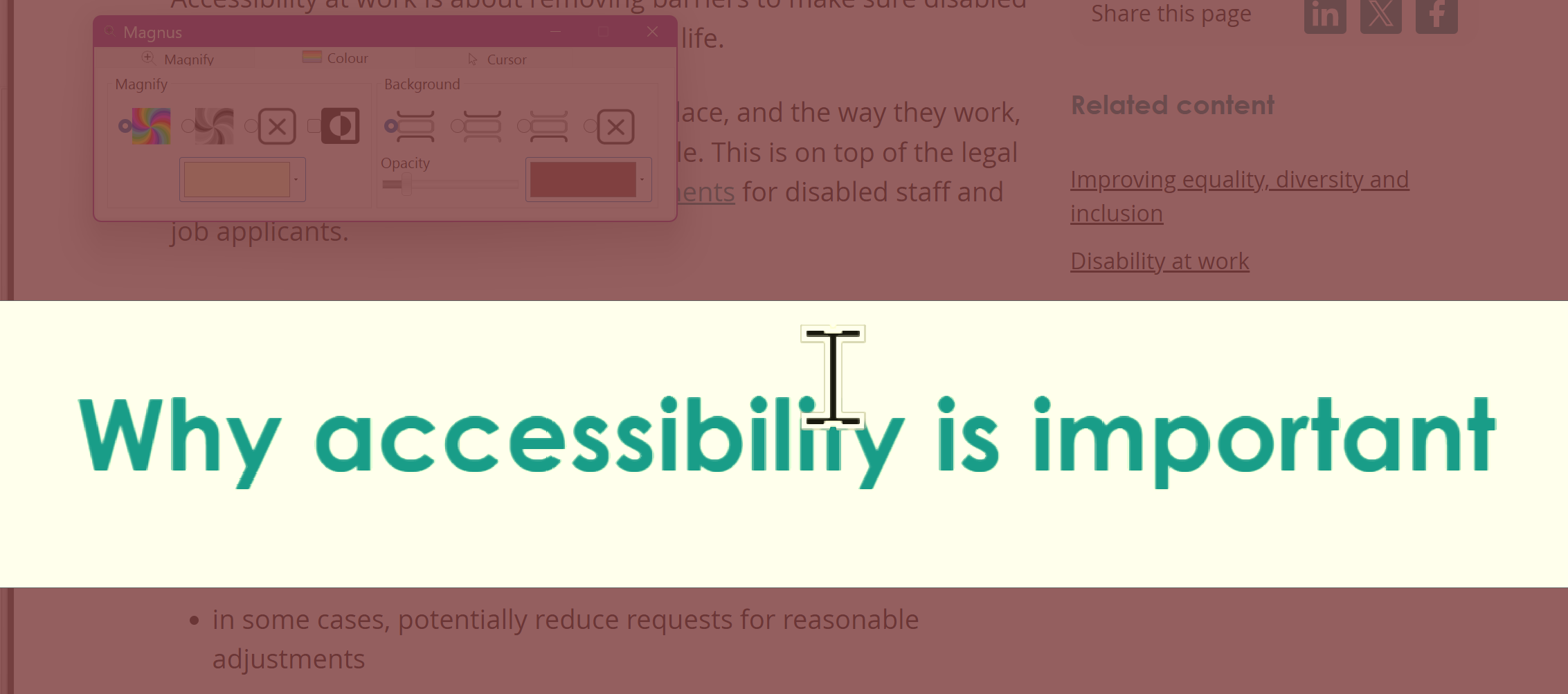
The Sensory Magnus ruler view, with a yellow tint on the reading line and plum tint around it.
More than magnification
A good magnifier also helps you see clearly, not just bigger:
- Colour inversion and high contrast, such as light text on a dark background, which reduces glare for many people.
- Colour tints and overlays that make text more comfortable to read. See our guide to coloured overlays and screen tints.
- Smoothing, so that enlarged text stays crisp instead of blocky.
- Pointer and cursor settings: a larger, coloured mouse pointer and a thicker text cursor are much easier to find on a magnified screen.
- Speech: some magnifiers can read text aloud, which reduces eye strain on long documents.
Screen magnifier, screen reader or text-to-speech?
| Tool | What it does | Often used by |
|---|---|---|
| Screen magnifier | Enlarges and enhances what is on screen | People who are partially sighted or have low vision, and anyone who finds larger or clearer text easier to read |
| Screen reader | Speaks everything on screen and is driven by the keyboard | People who are blind, and others who prefer to use a computer by sound and keyboard |
| Text-to-speech reader | Reads selected or pointed-at text aloud while you look at it | Anyone who likes to listen while reading, including many dyslexic people, and for proofreading and long documents |
These are not either/or: many partially sighted people use a magnifier and speech together, or switch between them for different tasks, especially as their sight changes or their eyes tire. A magnifier with speech, such as Sensory Magnus with Magnus Reader (coming soon), sits between the first and third.
Free screen magnifiers already on your devices
- Windows includes Magnifier. Press the Windows key and + to start it, and Windows+Esc to close it.
- Mac includes Zoom, in System Settings under Accessibility.
- iPhone and iPad include Zoom in Accessibility settings, and Apple's Magnifier app for using the camera.
- Android includes Magnification in the Accessibility settings.
These are a good starting point. Dedicated magnifier software adds extra views, finer control and reading tools. Sensory Magnus for Windows is free, builds on the Windows Magnification API and adds ruler, offset ruler and split-screen views plus independent colour tints. See how it compares with Windows Magnifier.
Screen magnifiers for students
For students with low vision or partial sight, a well set-up screen magnifier can make study reading more comfortable and less tiring. These set-ups use free tools.
Reading PDFs and journal articles
Journal articles are often in two columns with small print. A split screen is ideal: the full page stays visible unmagnified so you can see where you are, while the text under the mouse is enlarged in the other half. Try a vertical split for two-column papers.
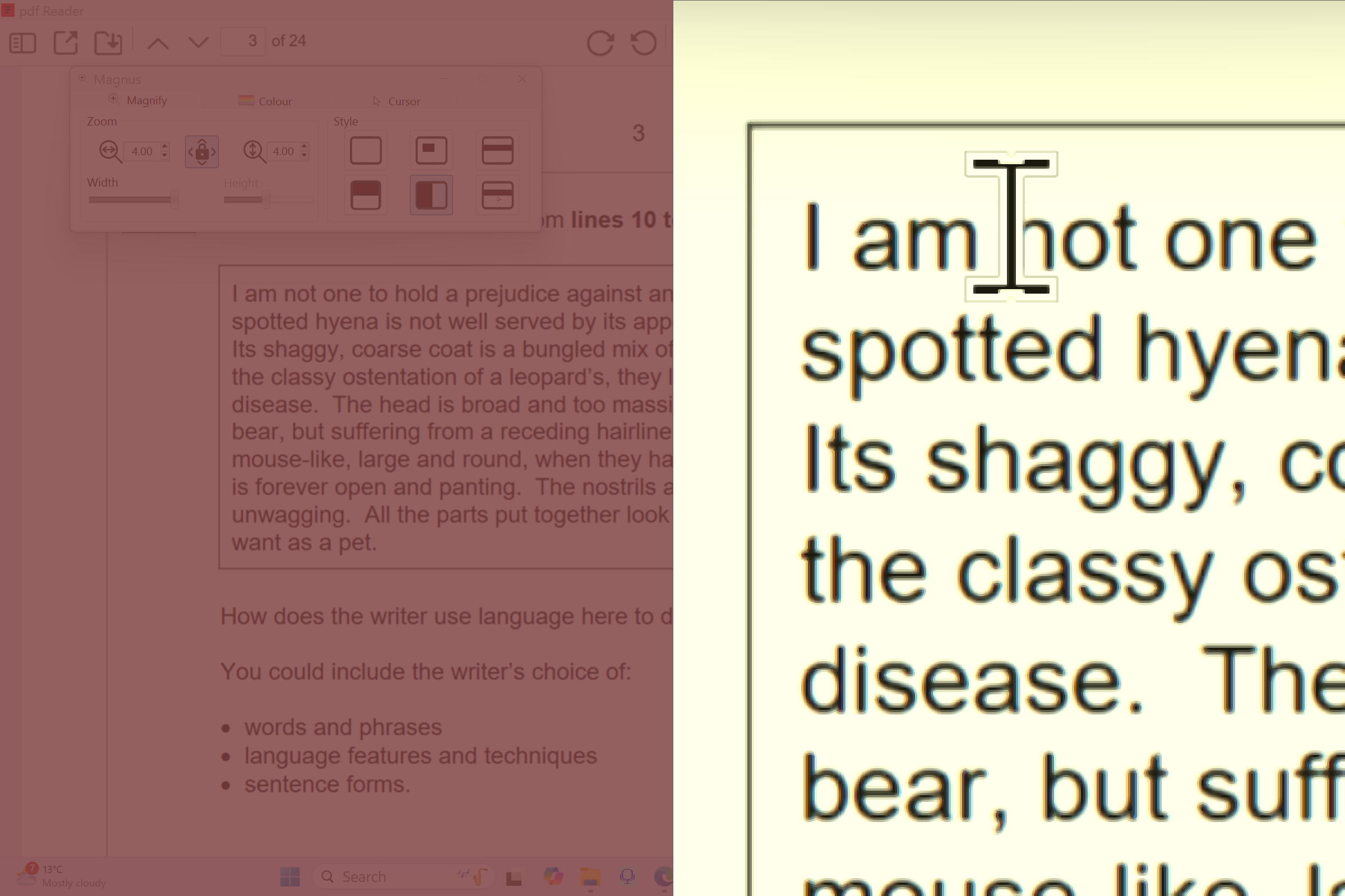
Vertical split screen in Sensory Magnus: page overview on one side, magnified text on the other.
Long reading sessions
Use a ruler view with a gentle tint on the reading line and a darker tint above and below. It reduces the amount of text competing for attention and helps you keep your place, which makes long sessions less tiring. See coloured overlays and screen tints.
Lectures and slides
Ask for slides in advance or through your virtual learning environment so you can view them on your own screen. A lens is useful for checking detail in a diagram without losing the rest of the slide.
Writing and editing
Increase the size and colour of the text cursor and mouse pointer so you can find them instantly on a magnified screen. Magnus links straight to these Windows settings. See cursor and text size help.
Printed handouts and books
Use a phone as a portable magnifier. Magnus for iPhone can magnify a page up to 15×, recognise the text and read it aloud, which helps with handouts, library books and noticeboards.
Support for students in the UK
In UK higher education, disabled students, including students who are blind or partially sighted, may be eligible for Disabled Students' Allowance (DSA). A study needs assessment can recommend assistive software, equipment and support tailored to the course. Your university's disability or inclusion service can explain the process and arrange reasonable adjustments such as accessible materials and exam arrangements.
Free tools are useful alongside this: you can start straight away, try different magnification styles to understand what helps, and use the same tool on shared or home computers. Sensory Magnus is free from the Microsoft Store, so there is nothing to fund or license.
Quick set-up checklist
- Install Sensory Magnus from the Microsoft Store.
- Try each of the six view styles with Ctrl+Shift+Tab.
- Find your comfortable magnification with Ctrl+Shift+→ and ←.
- Try a tint on the reading area and a darker background tint.
- Enlarge the mouse pointer and text cursor.
- If you use your own laptop, set Magnus to start at sign-in.
How to choose a screen magnifier
- Start with what you read most. Long documents and PDFs suit split screen or ruler views; web browsing often suits a lens or full screen.
- Check how much magnification you need. Many people find 2× to 4× is enough; others need much more. If you use high magnification, check the maximum level.
- Try colour options. Inversion or a tint can make as much difference as extra zoom.
- Check it starts when you need it, including on the Windows sign-in screen if you share or lock your PC.
- Try before you buy. Free tools let you work out what you need before considering paid software.
Frequently asked questions
Is there a free screen magnifier for Windows?
Yes. Windows includes Magnifier, and Sensory Magnus is a free screen magnifier from the Microsoft Store that adds ruler, offset ruler and split-screen views and colour tints.
What magnification level do I need?
It varies from person to person. Many people read comfortably at 2× to 4×. Start low and increase in small steps, because higher magnification shows less of the page at once.
Can DSA pay for a screen magnifier?
Disabled Students' Allowance can fund assistive software and equipment recommended in a study needs assessment. Your university disability service can advise. Free tools like Sensory Magnus can be used alongside any DSA-funded software.
What is the best magnifier view for reading PDFs?
Split screen usually works best for PDFs, because you can see the whole page unmagnified while reading the enlarged text. A ruler view is also good for long passages.
Can a screen magnifier read text aloud?
Some can. Windows Magnifier has a basic read-aloud option, and Sensory Magnus is adding Magnus Reader, a high-quality text-to-speech reader, soon.