Every Windows 11 PC comes with Magnifier, Microsoft's built-in screen magnifier. Sensory Magnus is a free alternative from the Microsoft Store. Both are built on the same foundation, the Windows Magnification API,. The difference is in the ways you can view and colour the screen.
At a glance
| Feature | Windows Magnifier | Sensory Magnus |
|---|---|---|
| Price | Free, built in | Free, Microsoft Store |
| Engine | Windows Magnification API | Windows Magnification API |
| Full screen view | ✔ | ✔ |
| Lens view | ✔ | ✔ |
| Docked view | ✔ | Split screen instead |
| Horizontal split screen (full page + magnified) | — | ✔ |
| Vertical split screen | — | ✔ |
| Reading ruler (line) view | — | ✔ |
| Offset ruler (doesn't cover the pointer) | — | ✔ |
| Maximum zoom | Up to 16× (1600%) | Up to 8× |
| Zoom steps | Choice of fixed increments | 0.25× steps, 32 levels |
| Separate horizontal and vertical zoom | — | ✔ |
| Invert colours | ✔ | ✔ |
| Colour tint on the magnified area | System-wide colour filters only | ✔ choose colour and opacity |
| Different tint for the background | — | ✔ above, below or both |
| Greyscale | System-wide colour filter | ✔ |
| Run at Windows sign-in | ✔ | ✔ |
| Read text aloud | Basic, Windows voices | Magnus Reader coming soon |
Windows Magnifier features are for Windows 11 and may change with Windows updates.
What Windows Magnifier does well
Windows Magnifier is always there, starts instantly with Windows++, and supports very high magnification. Its three views (full screen, docked and lens) cover the basics, and you can invert colours with Ctrl+Alt+I. Windows also has system-wide colour filters (greyscale, inverted and colour-blindness filters) in Settings under Accessibility. If you need more than 8× magnification, Windows Magnifier goes further than Magnus.
What Magnus adds
Reading-focused view styles
Magnus has six view styles. As well as full screen and lens, it adds a ruler that magnifies a horizontal band as you move down the page, an offset ruler that sits just away from the pointer so it never hides what you are pointing at, and horizontal and vertical split screens that show the full page unmagnified alongside the magnified area. Switch between them with Ctrl+Shift+Tab.
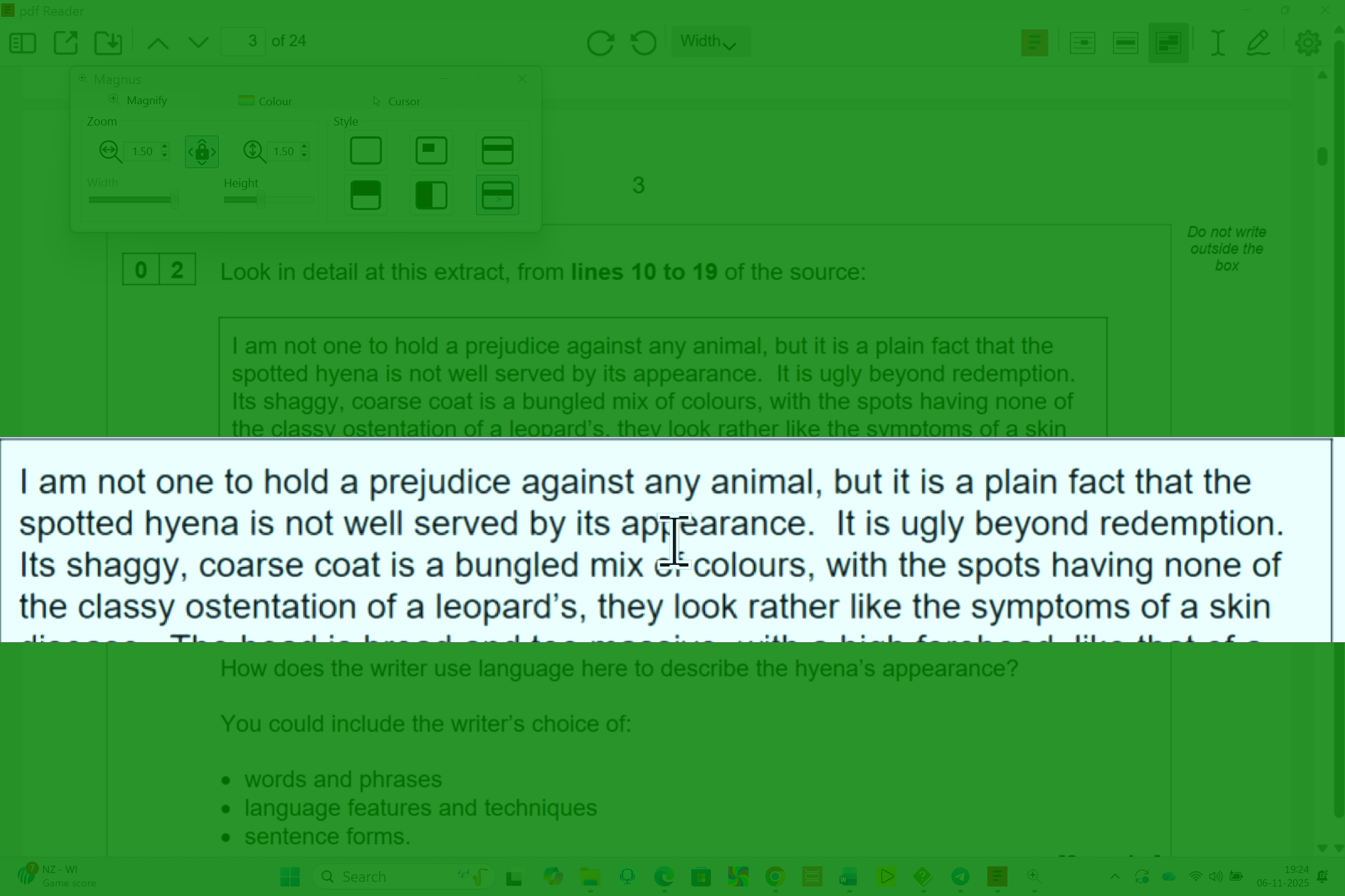
The offset ruler in Sensory Magnus, with a light blue tint inside and green outside.
Two independent colour tints
Windows colour filters change the whole screen at once. Magnus lets you set one tint for the magnified area and a different tint, at a different opacity, for the background around it, and choose whether the background tint goes above the lens or ruler, below it, or both. That makes it easy to create a focused, comfortable reading strip. See the colour tinting help.
Finer zoom control
Magnus zooms from 1× to 8× in 0.25× steps (32 levels), with high-quality smoothing, and can scale horizontally and vertically by different amounts, which some readers find helps with wide or tall content.
Cursor and text settings in one place
Magnus puts shortcuts to the Windows mouse pointer, text cursor and text size settings on one panel, so everything that affects how you see the screen is together.
Which should you use?
- Use Windows Magnifier if you need more than 8× magnification, or only need occasional quick zoom.
- Try Sensory Magnus if you read long documents, PDFs or web pages and want a ruler or split screen, or if colour tints make reading more comfortable for you.
Both are free, so the simplest approach is to try Magnus for a week on your everyday work. We recommend running one magnifier at a time.
Frequently asked questions
Is Sensory Magnus better than Windows Magnifier?
It depends on what you need. Windows Magnifier goes to higher magnification. Magnus adds ruler, offset ruler and split-screen views, independent tints for the magnified area and background, and finer zoom steps. Both are free.
Does Sensory Magnus use the Windows Magnifier?
Magnus is built on the Windows Magnification API, the same system component that Windows Magnifier uses, and adds its own view styles and colour controls on top.
Can Magnus run on the Windows sign-in screen like Windows Magnifier?
Yes. Magnus registers with the Windows Ease of Access Centre, where you can set it to run at sign-in and after sign-in.