
See everything more clearly.
Free screen magnifier
for Windows & iPhone
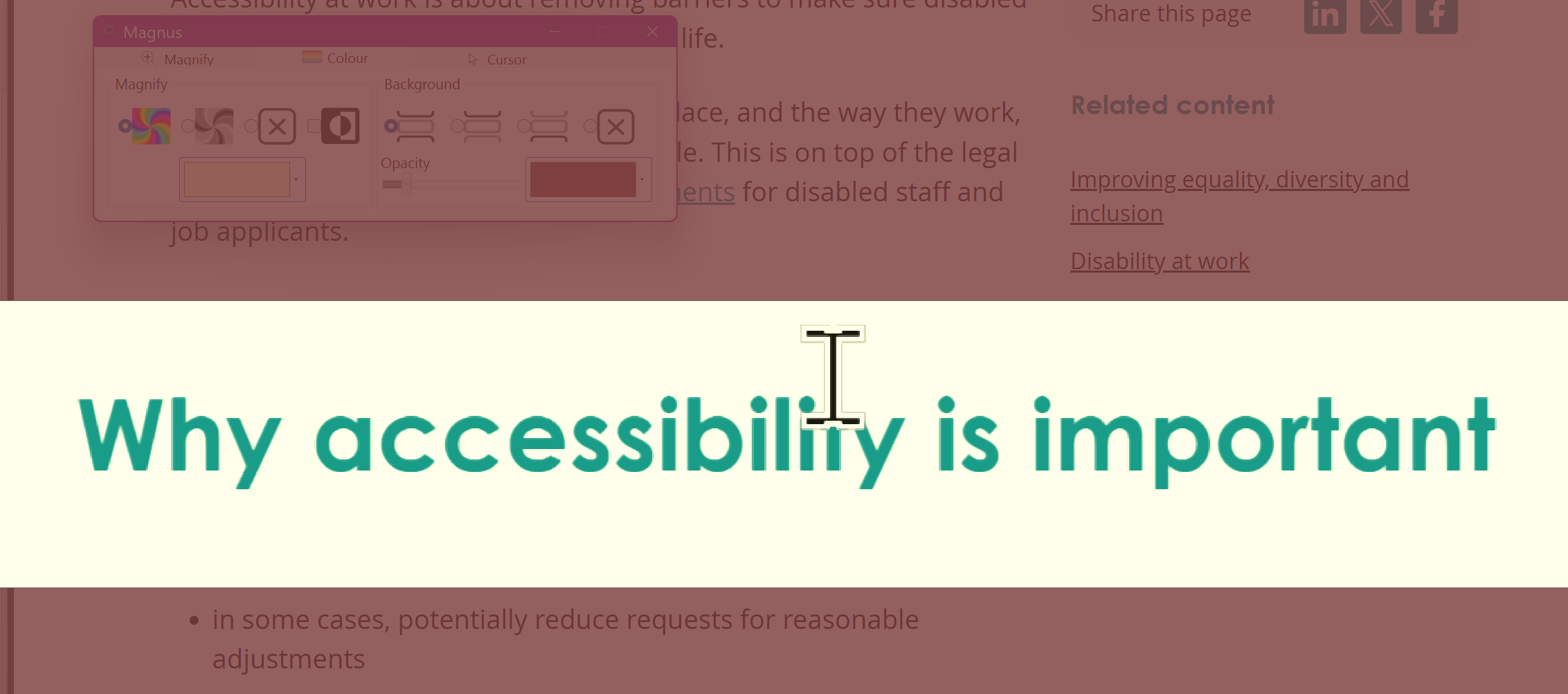
Sensory Magnus is a free magnifier and reading tool for anyone who finds text hard to see, including people who are partially sighted or have low vision, and people with visual stress. On Windows 11 it adds six magnification styles and flexible colour tinting to the Windows magnifier. On iPhone and iPad it magnifies the world through your camera, recognises text instantly and reads it aloud.
The Windows magnifier engine, with more ways to see
Magnus is built on the Windows Magnification API, the same engine behind the Magnifier that ships with Windows. That gives it smooth, reliable zoom and a proper place in the Windows Ease of Access settings. On top of that, Magnus adds reading-focused view styles and colour controls that the built-in Magnifier does not have.
Windows Magnifier gives you
- Full screen, lens and docked views
- Keyboard zoom and colour inversion
- System-wide colour filters in Settings
Magnus adds
- Ruler and offset ruler modes for reading line by line
- Horizontal and vertical split screen, with the full page beside the magnified view
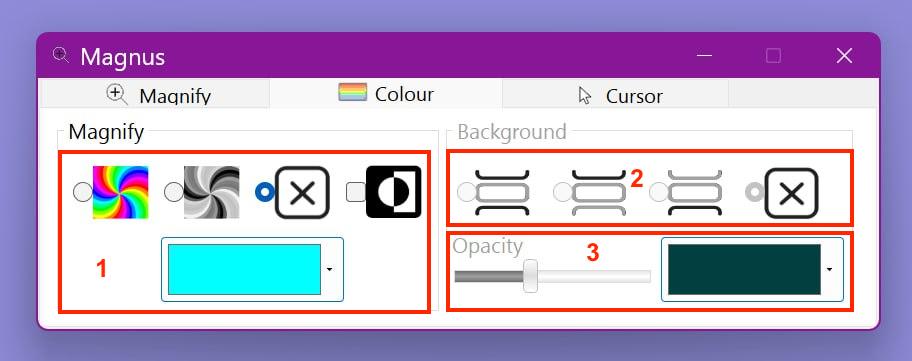
- Separate tints for the magnified area and the background, with adjustable opacity
- Independent horizontal and vertical zoom in 0.25× steps
Everything you need to read with ease
Magnus combines powerful screen magnification with flexible colour support and natural-sounding speech — a complete accessibility toolkit in one free app.
6 Magnification Styles
Full screen, lens, ruler, offset ruler, and horizontal or vertical split-screen — each designed for different reading and navigation needs.
32 Magnification Levels
Fine-tune from 1× to 8× in 0.25 increments with high-quality smoothing. Independent horizontal and vertical scaling available.
Colour Tinting & Overlays
Apply colour tints independently to the magnified area and background. Includes greyscale and inverted high-contrast modes.
Magnus Reader Coming Soon
High-quality human-sounding voices will read any accessible text under your mouse — in Word, Edge, PDFs, and more. Live word highlighting included. Register for early access →
Cursor & Pointer Accessibility
Direct links to Windows settings for mouse pointer size and colour, text cursor appearance, and system text size — all from one place.
Windows Ease of Access
Register Magnus to run at sign-in or on startup — your accessibility settings are active before you even log in to Windows.
Six ways to magnify your screen
Switch between styles instantly with Ctrl+Shift+Tab, and adjust magnification with keyboard shortcuts at any time.
Full Screen Magnifier
Magnifies your entire screen from 1× to 8×. The simplest and most immersive mode for all-day use.
Lens
A magnifying lens follows your mouse. Resize freely and apply contrast tinting outside to remove distractions.
Ruler
A magnified horizontal band follows your cursor — ideal for reading line by line with a tint above and below.
Horizontal Split Screen
View the full document unmagnified on one half while the area under your mouse is magnified on the other.
Vertical Split Screen
The same split-screen concept arranged left and right — useful for wider document navigation.
Offset Ruler
Like the Ruler, but offset from the mouse so the magnified view doesn't obscure what you're pointing at.
Keyboard Shortcuts
| Shortcut | Action |
|---|---|
| Ctrl+Shift+→ | Increase magnification level |
| Ctrl+Shift+← | Decrease magnification level |
| Ctrl+Shift+Tab | Cycle through all 6 view styles |
Comfortable colours for every reader
Set independent colour overlays for the magnified area and the background outside it. Choose from a full colour wheel, adjust opacity, or switch to inverted high-contrast mode — with or without magnification.

High-quality text‑to‑speech Coming Soon
Magnus Reader will add natural-sounding human voices to Sensory Magnus — reading any accessible text under your mouse in documents, web pages, PDFs and more. Not yet released — but coming soon.
📬 Interested in early access to Magnus Reader?
We're offering early access to Magnus Reader ahead of its public release. Register your interest and we'll be in touch when places become available.
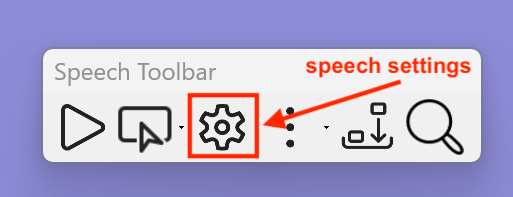
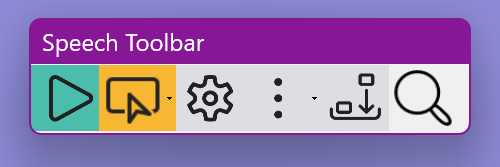
Register Your Interest- Play button — click where you want to start, press Play on the speech toolbar
- Select & Speak — highlight any text with your mouse to hear it read aloud immediately
- Ctrl + Move — hold Ctrl and nudge your mouse to speak text at the cursor position
- Cursor keys — Down Arrow reads a line; Ctrl + Right Arrow reads word by word
- Underline highlight — a coloured underline tracks each spoken word in real time
- Mouse follows speech — magnifier view scrolls automatically with the spoken words
Magnify, scan and listen, anywhere
Point your iPhone at a letter, a menu, a medicine label or a price tag. Magnus magnifies it up to 15×, recognises the text instantly on your device and reads it aloud, highlighting each word as it goes. It is free, works offline and collects no data.
🔍 15× magnification
Smooth zoom from 1× to 15× with a precision slider in 0.25× steps. Your zoom level is remembered.
⚡ Instant OCR
Pause the camera and the text is extracted straight away, with language correction, all on-device.
🗣️ Read aloud
Text-to-speech with a word-by-word underline. Play, pause, resume or start from any point.
🎨 Colour & contrast
Invert colours, 9 colour tints, up to 3× contrast, monochrome, and edge enhancement.
🔦 Torch & masking
Built-in torch for low light. Masking darkens the top and bottom of the screen for line-by-line reading.
🔠 Your display, your way
5 text sizes (20–40pt), 8 text colours and 8 background colours for recognised text.
Free on Windows, iPhone and iPad
No subscription, no in-app purchases and no sign-up. Sensory Magnus is completely free on both platforms.
Sensory Magnus for Windows
A free screen magnifier from the Microsoft Store, with 6 view styles, 32 zoom levels up to 8×, colour tinting and Windows Ease of Access integration. Magnus Reader text-to-speech is coming soon.
Get it from Microsoft Store
Sensory Magnus for iPhone
A handheld magnifier with 15× zoom, instant on-device text recognition (OCR), read-aloud with word highlighting, colour tints and a torch. Private by design: offline, no account, no data collected.
Download on the App StoreRegistered with Windows Ease of Access
Magnus registers itself with the Windows Ease of Access Centre on installation. Set it to run before or after Windows sign-in, and your personal settings load automatically for each user. How to set it up →
What you need to run Magnus
Learn more about screen magnifiers
Plain-English guides to magnification, colour tints and reading support, whichever tool you end up using.
What is a screen magnifier?
How screen magnifiers work, who uses them, the main view styles, and practical set-ups for students.
Read the guide →Magnus vs Windows Magnifier
What the built-in Windows Magnifier does, and what Magnus adds on top.
Read the guide →Coloured overlays & screen tints
Using on-screen colour tints for visual stress, dyslexia and reading comfort.
Read the guide →Frequently asked questions
Is Sensory Magnus really free?
Yes. Sensory Magnus for Windows is a free download from the Microsoft Store, and Sensory Magnus for iPhone and iPad is free on the App Store. There is no subscription, no in-app purchase and no account to create.
How is Magnus different from the Windows built-in Magnifier?
Magnus is built on the same Windows Magnification API that powers the built-in Magnifier, then adds more ways to view the screen: a reading ruler, an offset ruler, horizontal and vertical split screens, and separate colour tints for the magnified area and the background. See our Magnus vs Windows Magnifier comparison.
Which versions of Windows does Magnus support?
Magnus for Windows runs on Windows 11. We recommend 8 GB of RAM or more.
Can Magnus start before I sign in to Windows?
Yes. Magnus registers with the Windows Ease of Access Centre, so you can set it to run on the sign-in screen and to start automatically after you sign in. See how to run Magnus at sign-in.
What does the iPhone app do?
Magnus for iPhone turns your camera into a handheld magnifier with up to 15× zoom, colour and contrast enhancement, and a torch. Pause the camera and it recognises the text instantly on your device, then reads it aloud with word-by-word highlighting.
Does the iPhone app need an internet connection or collect my data?
No. Text recognition and speech run entirely on your iPhone or iPad. The app works offline, needs no account, and collects no data.
Can colour tints help with visual stress or dyslexia?
Many people find a coloured tint makes on-screen text more comfortable to read. Magnus lets you try different colours and opacity levels on screen. Read our guide to coloured overlays and screen tints.