
Sensory Magnus
A modern assistive magnification and reading tool for Windows and iPhone — designed to support people with a wide range of visual difficulties.
Sensory Magnus operates as a screen magnifier with a range of viewing styles, and will include Magnus Reader — a high-quality text-to-speech feature that reads text aloud as you work. Magnus Reader is coming soon and not yet released.
What Magnus can do
32 magnification levels up to 8× with high-quality smoothing keep text and images sharp at any zoom level.
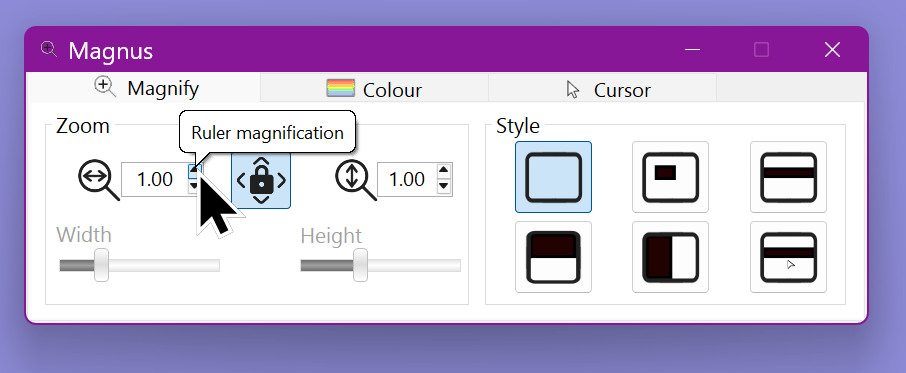
The Magnus magnification settings panel, showing style options and level controls.
Colour tinting
Flexible colour overlays can be applied independently to the magnified area and the background — with or without magnification.
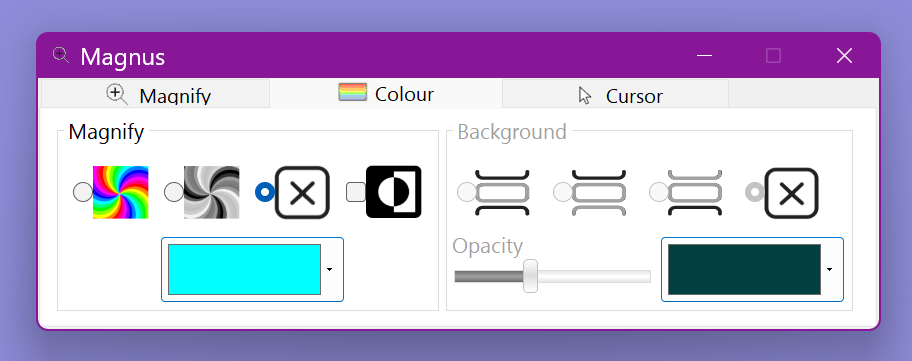
The Magnus colour tinting settings panel.
Cursor and accessibility links
Magnus links directly to Windows accessibility settings for the mouse cursor, text cursor, and text size — all reachable from one place.
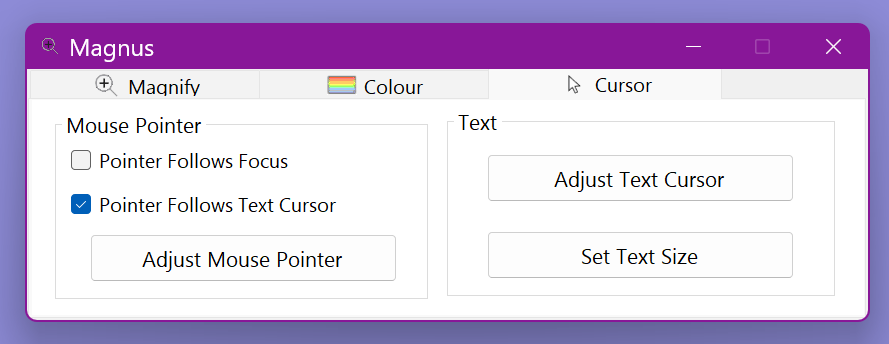
The Magnus cursor accessibility settings panel.
Magnification Options
Six distinct view styles, 32 levels up to 8×, and full control over width, height, and tinting for each style.
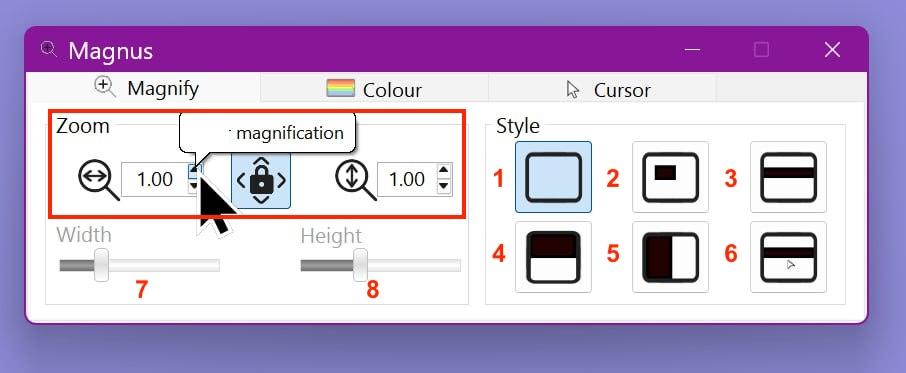
The Magnus magnification settings panel showing all view styles.
Magnification level can be set independently for horizontal and vertical axes by unlocking the padlock control in the centre of the magnification level controls.
View Styles
Style 1 — Full Screen Magnifier
Magnifies the entire screen from 1 (no magnification) to 8×, in 0.25 increments.
Style 2 — Lens
A magnification lens follows your mouse pointer. Adjust lens width and height, apply a tint inside, and set a contrasting tint outside — bringing magnified focus while removing distractions.
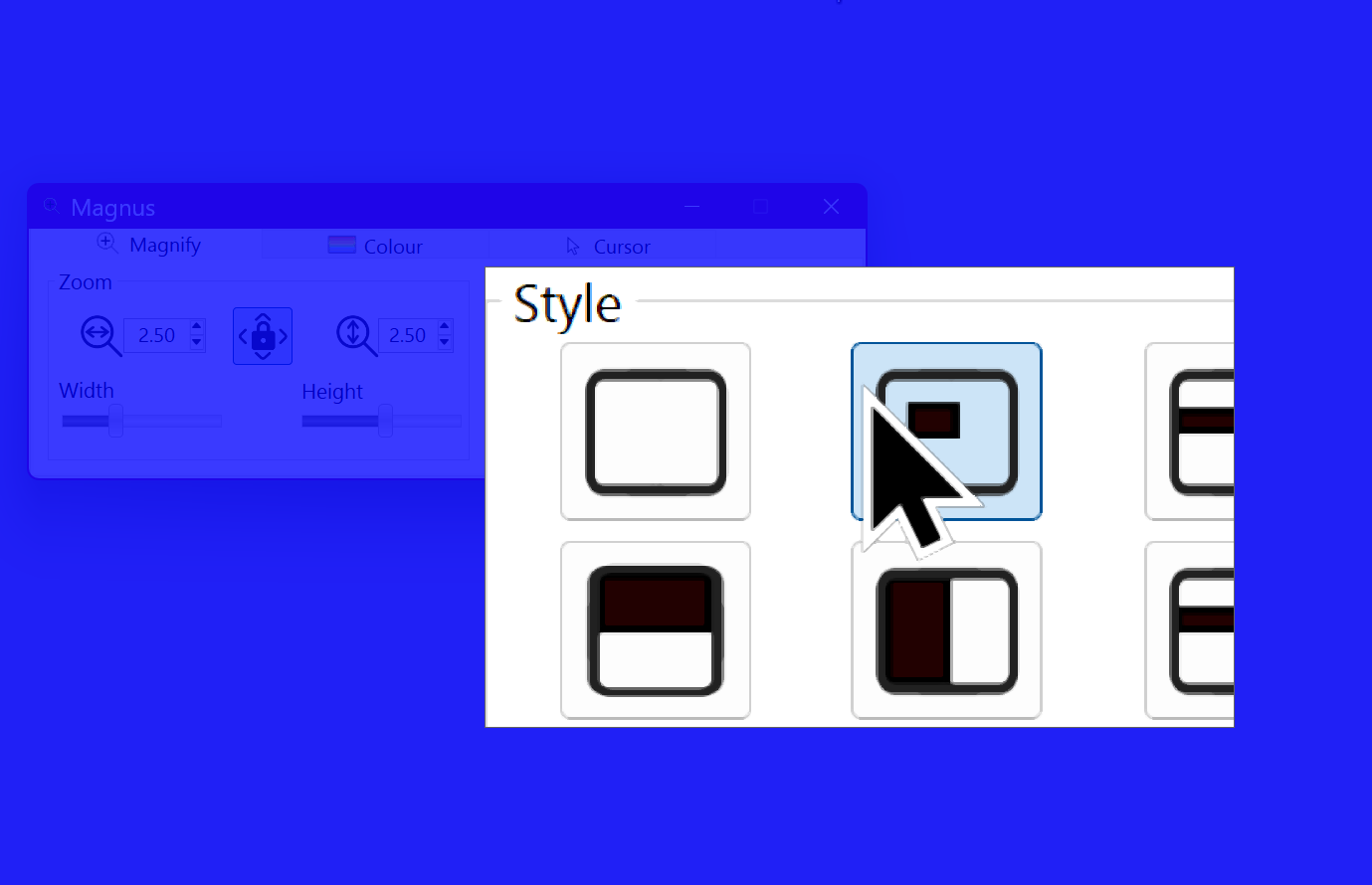
The Lens style with a royal blue contrast tint applied outside the lens area.
Style 3 — Ruler
A magnifying ruler follows your cursor up and down the screen. The ruler height is adjustable, and both the ruler area and surrounding region can be independently tinted.

The Ruler style with yellow tint inside and plum contrast outside.
Styles 4 & 5 — Split Screen
Split the screen horizontally or vertically. Navigate a document in a "zoomed out" view while the area under the mouse appears at your preferred magnification in the other pane.
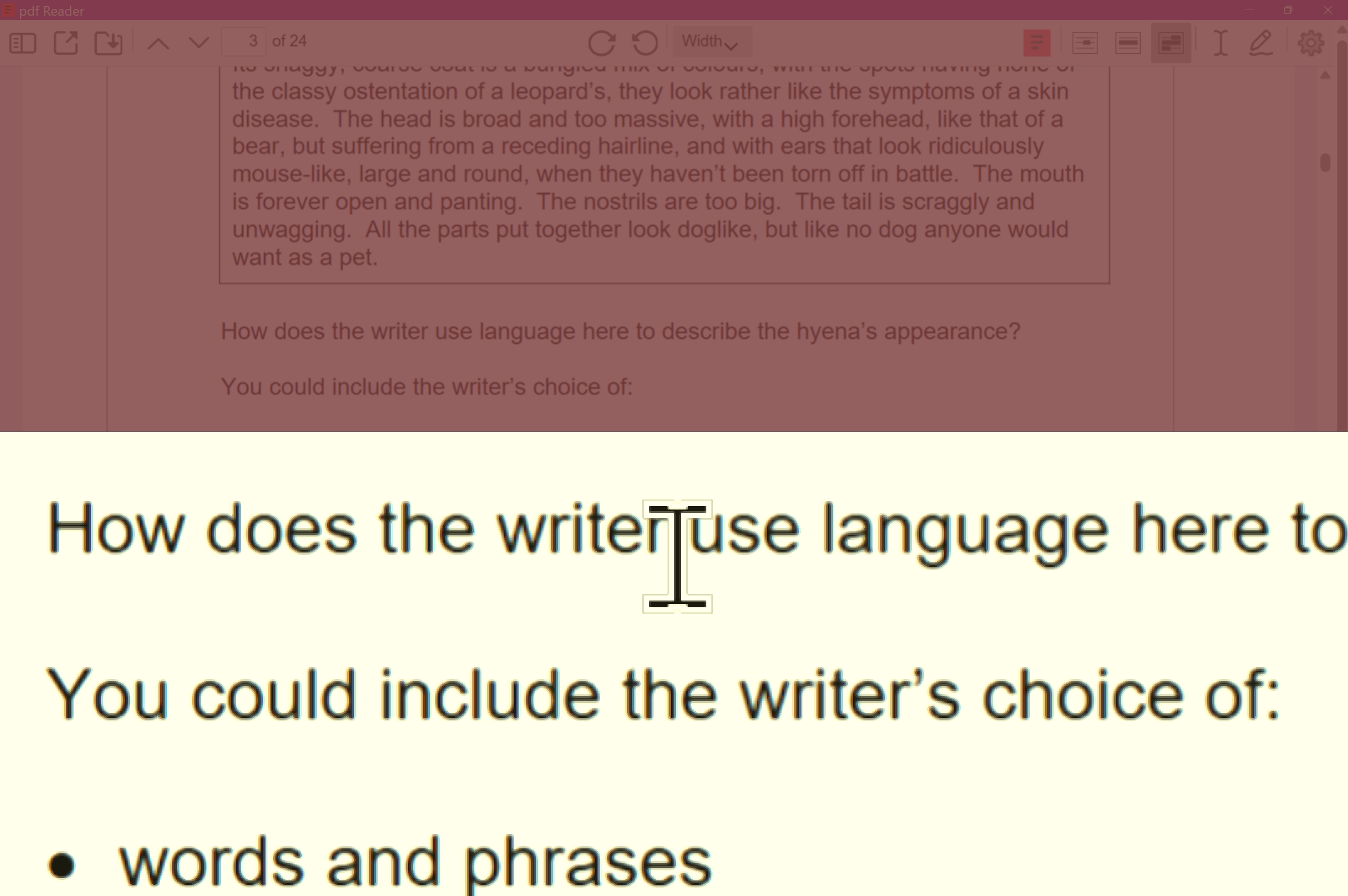
Horizontal split: yellow tint in the magnified section, plum contrast on the full-size view.
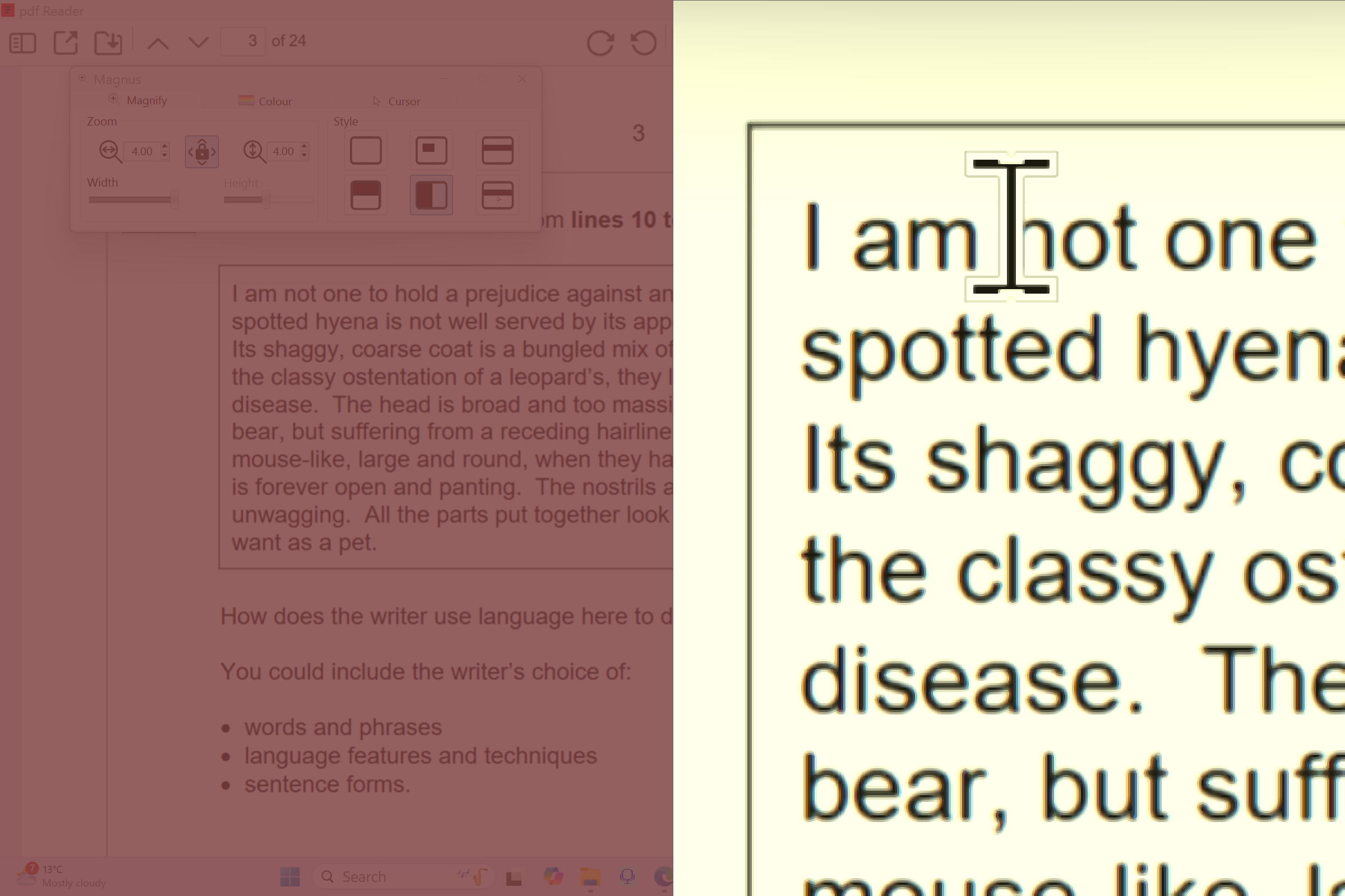
Vertical split: left/right pane arrangement.
Style 6 — Offset Ruler
Like the Ruler, but offset from the mouse position so the magnified view doesn't obscure what you're pointing at.
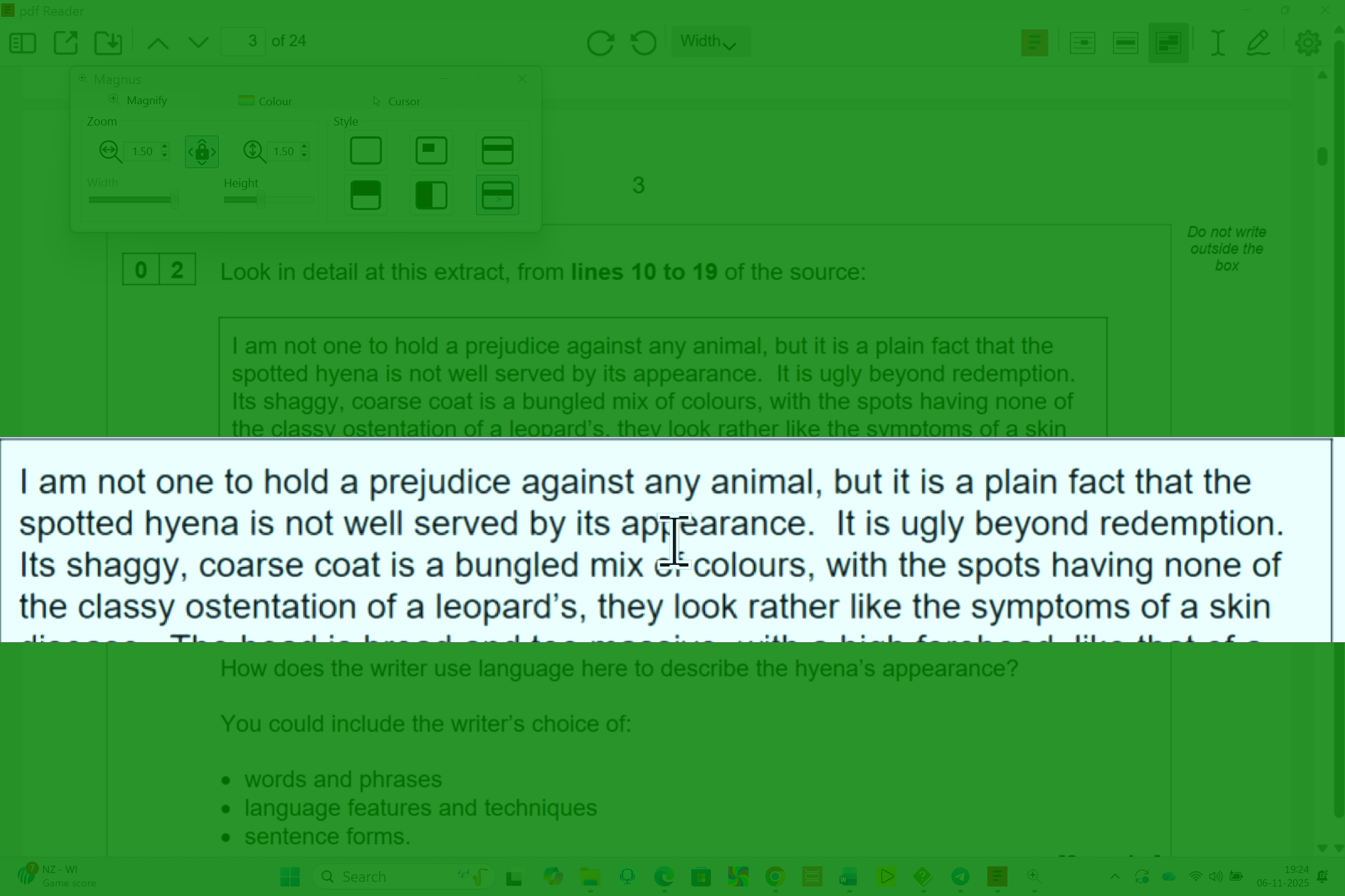
The Offset Ruler with light blue tint inside and green contrast outside.
Keyboard Shortcuts
| Shortcut | Action |
|---|---|
| Ctrl+Shift+→ | Increase magnification level one step |
| Ctrl+Shift+← | Decrease magnification level one step |
| Ctrl+Shift+Tab | Cycle through all 6 magnification styles |
Colour Tinting Options
Independent colour overlays for the magnified area and background — with or without magnification.
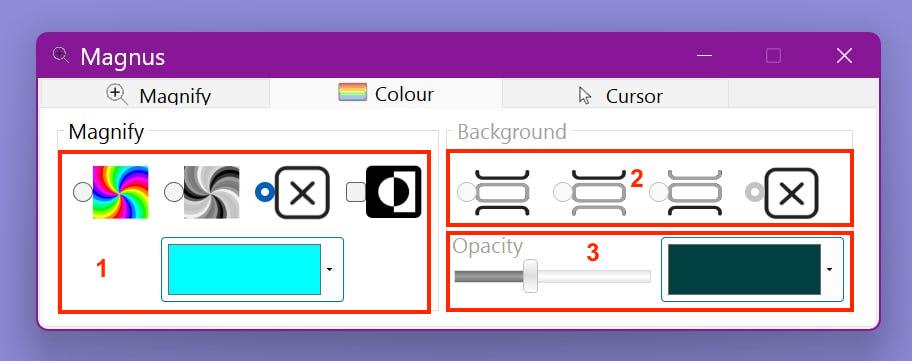
The Magnus colour tint options panel.
Magnus allows colour tints for two independent areas. The first area is around the mouse — lens, ruler, or full screen. The background is the region outside the lens, split, or ruler.
Section 1 — Tint for Lens, Ruler, or Full Screen
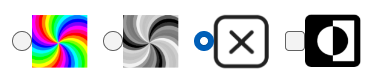
Controls for the tint applied inside the lens, ruler, or full screen area.
Set to ✕ for no tint. Set to the colour wheel icon to apply a tint, then choose a colour from the dropdown.
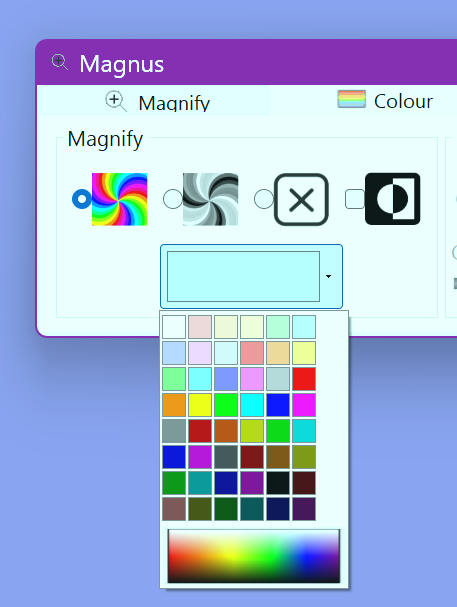
The colour tint dropdown showing available overlay colours.

The Ruler in inverted colour mode — white text on dark for high contrast.
Section 2 — Background Tint Coverage
Controls where the background tint is applied. Inactive when using Full Screen mode.

Options for where the background tint is applied relative to the lens or ruler.
- Option 1 — Background tint above and below the lens or ruler
- Option 2 — Background tint above only
- Option 3 — Background tint below only
- Option 4 — No background tint
Section 3 — Background Tint Colour & Opacity
Select the background tint colour and adjust opacity from fully solid to completely see-through.
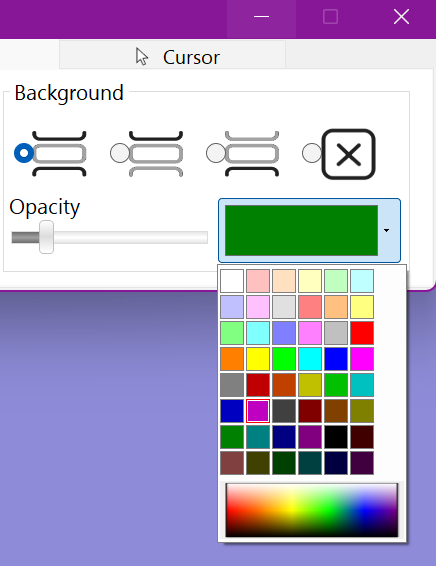
Background tint colour and opacity controls.
Cursor Displays
Magnus links directly to Windows accessibility settings for the mouse pointer, text cursor, and text size.
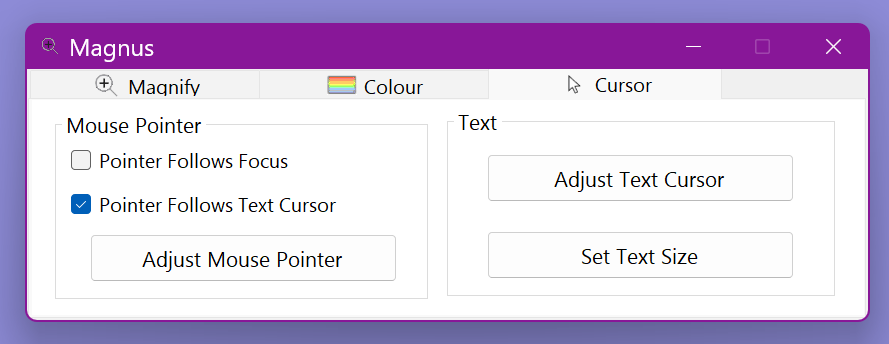
The Magnus cursor settings panel with links to Windows accessibility options.
- Mouse Pointer — change pointer size, colour, and style
- Text Cursor — adjust cursor thickness and colour
- Text Size — increase text size across Windows applications
See the sub-pages for screenshots of each settings panel: Mouse Pointer · Text Cursor · Text Size
Mouse Pointer
Windows accessibility settings for adjusting the mouse pointer size, colour, and style.
Increase the pointer size and choose a colour scheme to make it easier to see on screen.
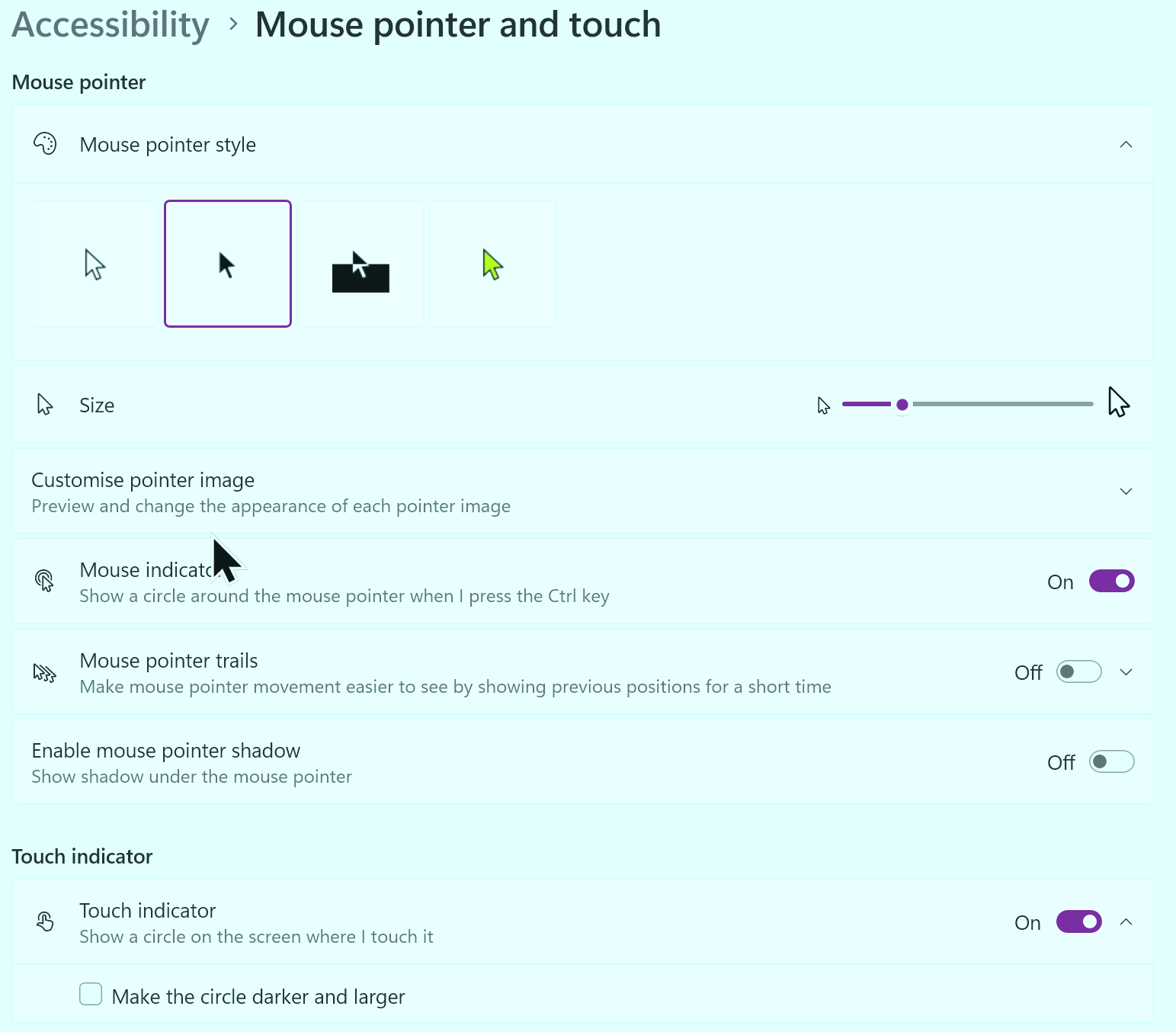
Windows mouse pointer accessibility settings, opened from within Magnus.
Text Cursor
Windows accessibility settings for the text insertion cursor appearance.
Increase cursor thickness and add a colour indicator to make it easier to locate while typing.
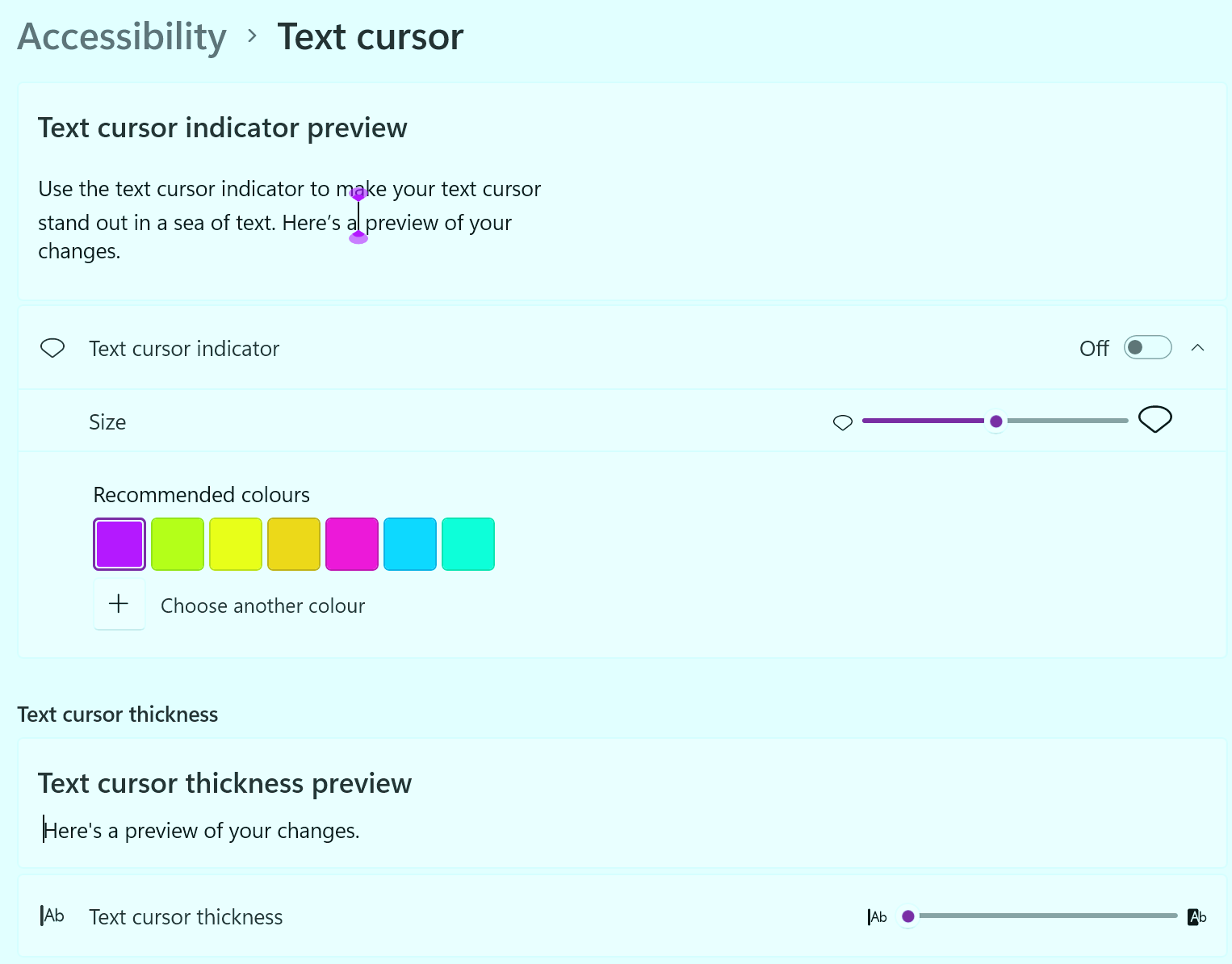
Windows text cursor accessibility settings, opened from within Magnus.
Text Size
Windows accessibility settings for making text larger across the system.
Increasing the text size here makes text larger throughout Windows and most applications, complementing Magnus magnification.
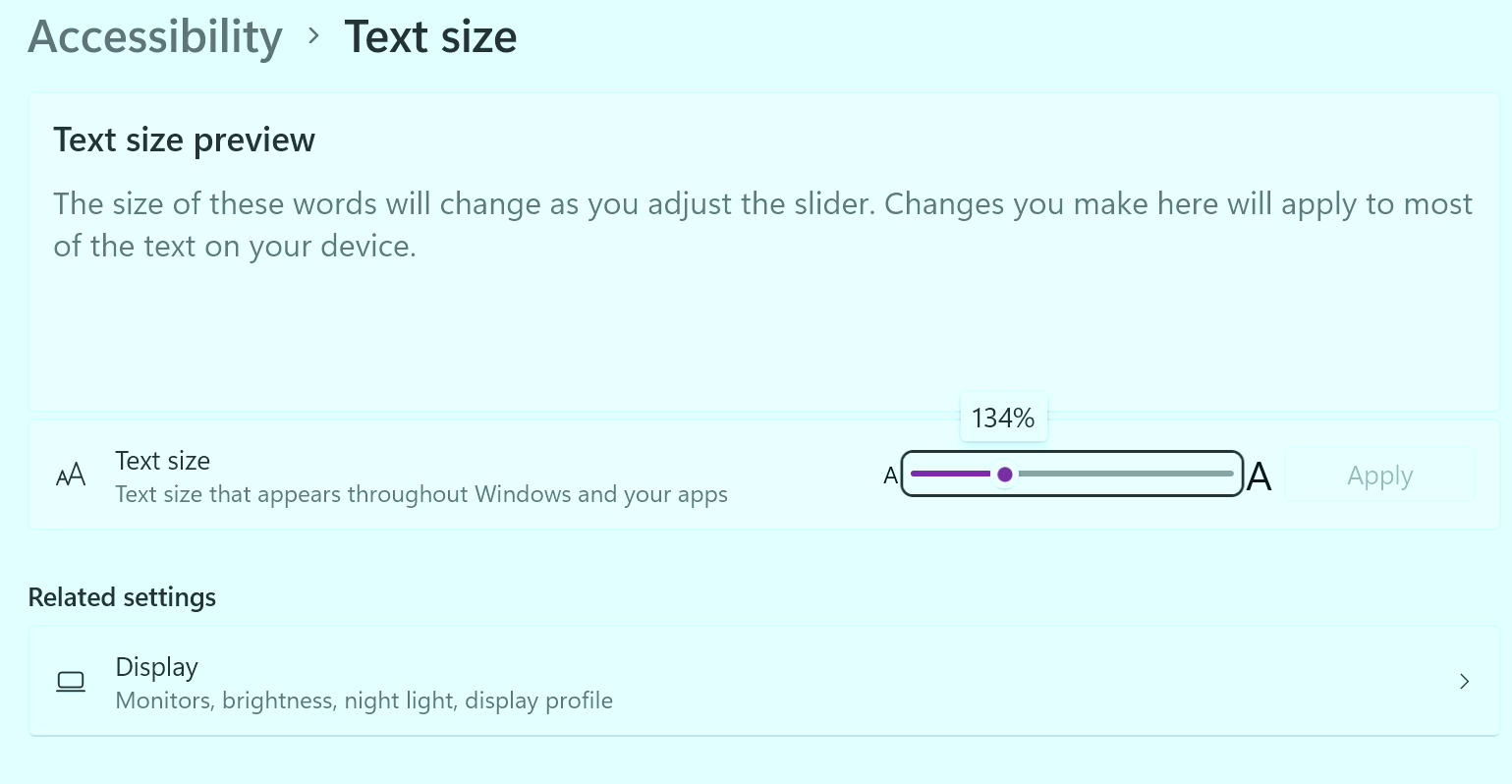
Windows text size accessibility settings, opened from within Magnus.
Ease of Access Centre
Configure Magnus to run automatically at Windows sign-in or after login.
Sensory Magnus registers itself with the Windows Ease of Access Centre on installation. You can configure it to run outside the login screen and start automatically when you log in.
Step-by-step setup
-
Open the Windows Control Panel. Type Control Panel into the Windows Search box.
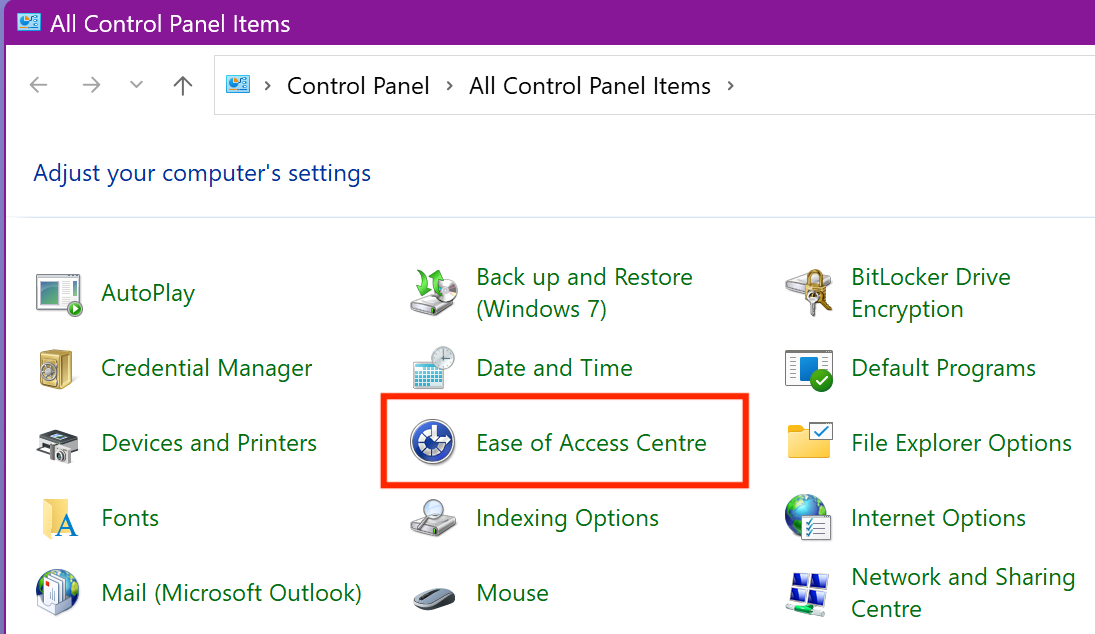
Finding the Control Panel via Windows Search.
-
Open the Ease of Access Centre and select "Change Sign-in settings".
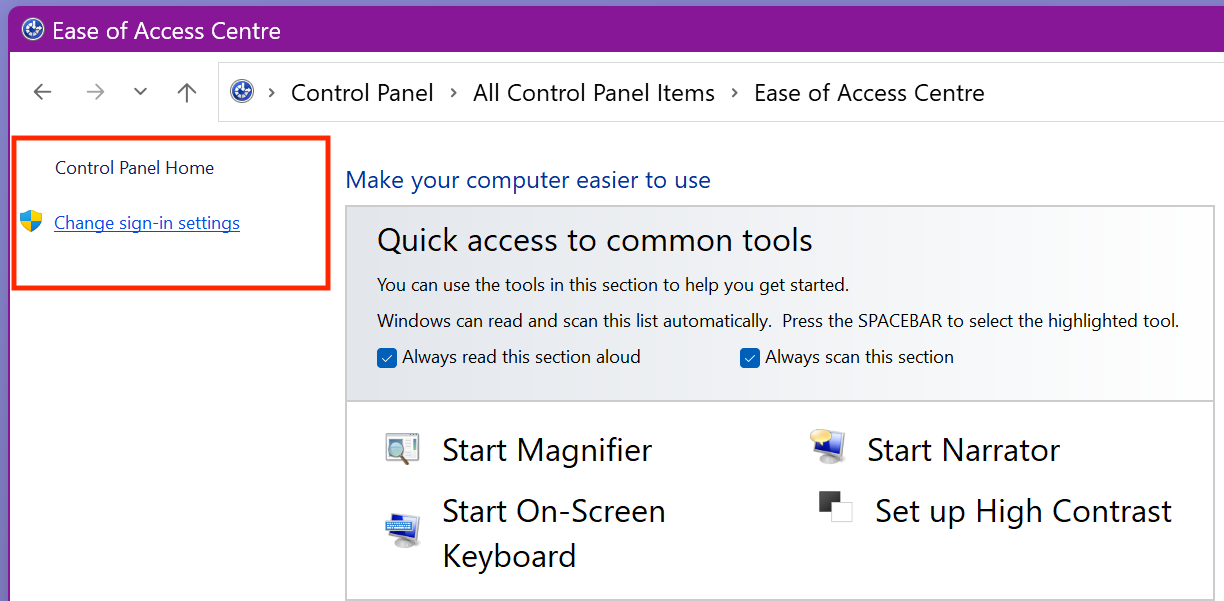
The Ease of Access Centre with "Change Sign-in settings" highlighted.
-
Tick "Magnifier (Magnus)" for At sign-in and/or After sign-in.
- At sign-in — runs Magnus on the Windows login screen, before you log in
- After sign-in — Magnus starts automatically on login, loading your personal settings
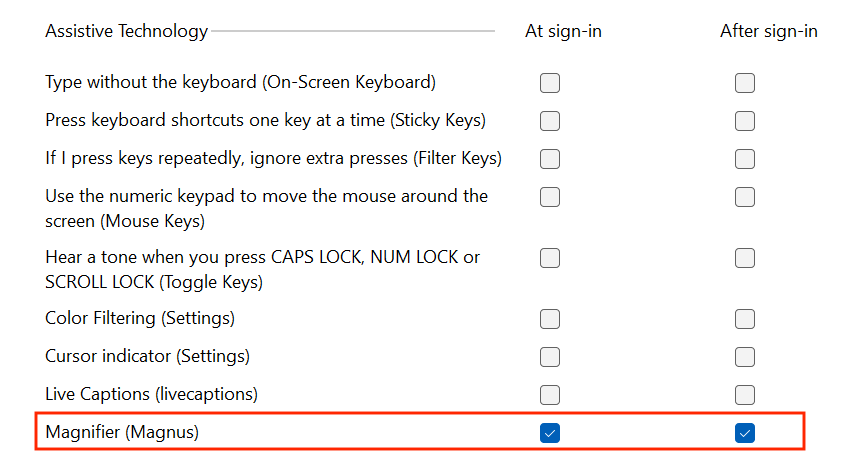
Ticking the Magnus setting for at sign-in and after sign-in.
How to Start Speech
Magnus Reader will add very high quality human speech to your magnifier — reading any accessible text under your mouse pointer in documents, web pages, PDFs, and more.
Method 1 — Play Button on Speech Toolbar
In Word, Notepad, Edge and other applications, click where you want reading to start, then press the Play button on the Magnus Speech Toolbar.
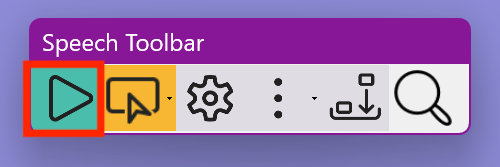
The Play button on the Magnus Speech Toolbar.
Magnus continues speaking until you press Stop or press the Ctrl key.
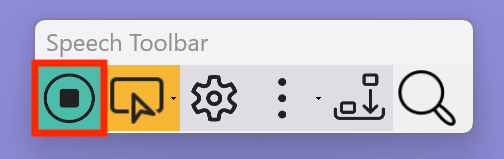
The Stop button on the Magnus Speech Toolbar.
Method 2 — Select Text to Speak
Select any accessible text with your mouse and Magnus will speak it automatically (Speak on Select). This can be turned off in Speech Settings if not needed.
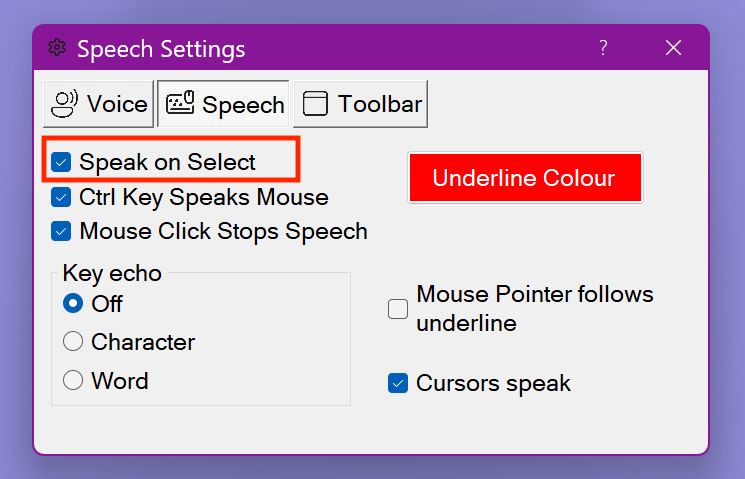
The "Speak on Select" option in Magnus Speech Settings.
Magnus can also underline-highlight the spoken word in Word, WordPad, Edge and more. To stop: press Stop on the toolbar, press Ctrl, or left-click your mouse.
Method 3 — Ctrl Key + Mouse Move
Hold Ctrl and nudge your mouse pointer — Magnus will speak the text at that position. Press Ctrl again to stop.
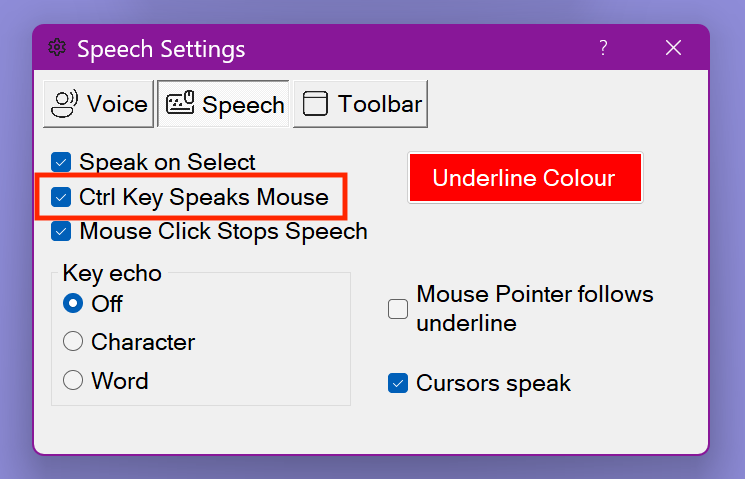
The "Ctrl+Move Cursor to Speak" option in Magnus Speech Settings.
Set how much text is spoken per nudge — word, line, paragraph, or full document:
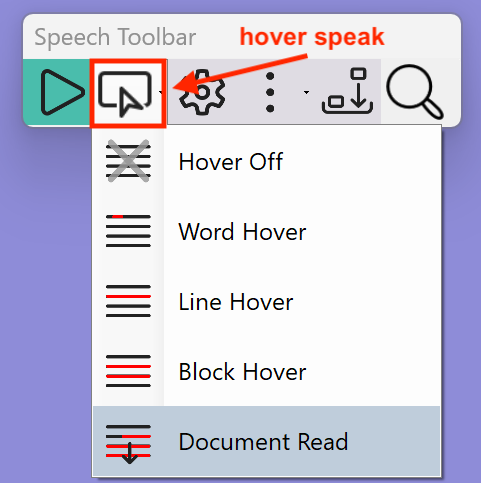
Hover section settings — word, line, block, or full document reading.
Method 4 — Keyboard Cursor Keys
When in a text editor like Word or Notepad, cursor keys control reading:
| Key | Action |
|---|---|
| ↓ Down Arrow | Speak the whole current line |
| Ctrl+→ | Read one word at a time |
Speech Toolbar Settings
Three settings tabs — Voice, Speech, and Toolbar Display — will give you full control over how Magnus Reader speaks and appears. Magnus Reader is coming soon and not yet released.
When Magnus Reader is released, click the settings cog icon on the Magnus Speech Toolbar to open the settings.
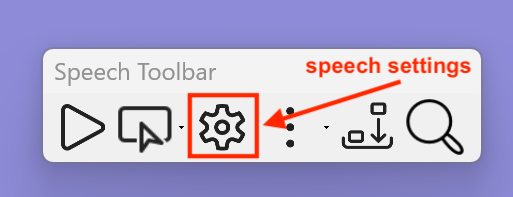
The Speech Toolbar settings panel, opened via the cog icon.
Tab 1 — Voice Settings
Choose your text-to-speech voice and adjust reading speed and volume.
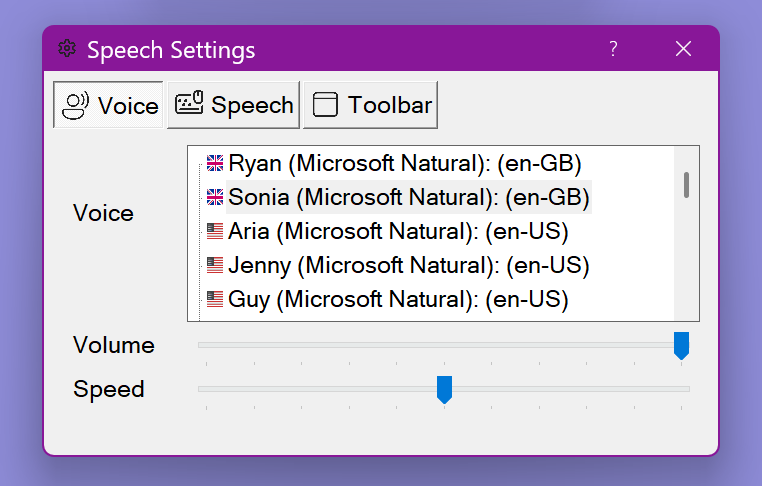
The Voice settings tab — choose voice, speed, and volume.
Tab 2 — Speech Control Settings
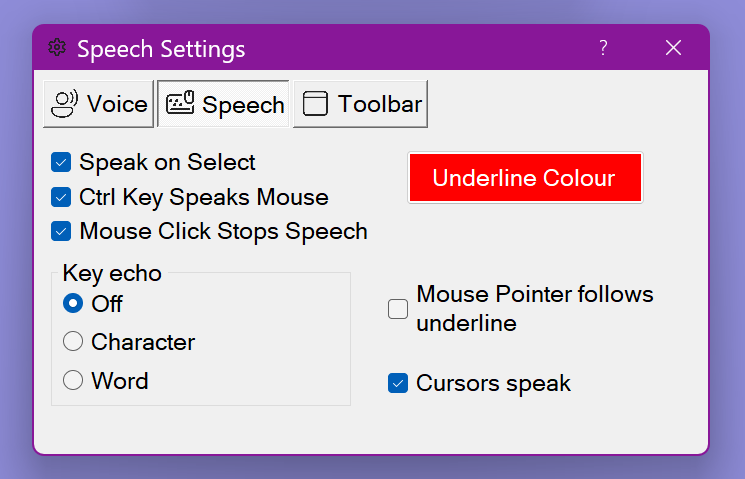
The Speech Control settings tab.
- Speak on Select — speaks text automatically when you select it with the mouse.
- Ctrl Key Speaks Mouse — hold Ctrl and move the mouse to speak text at that position.
- Mouse Click Stops Speech — when on, a left click stops speech.
- Underline Colour — changes the colour of the word highlight shown under the spoken word.
- Mouse Pointer Follows Underline — the mouse follows the underline highlight, so the magnified view scrolls with the words being read.
- Cursors Speak — allows keyboard cursor keys to control reading in text editors.
Tab 3 — Toolbar Display Settings
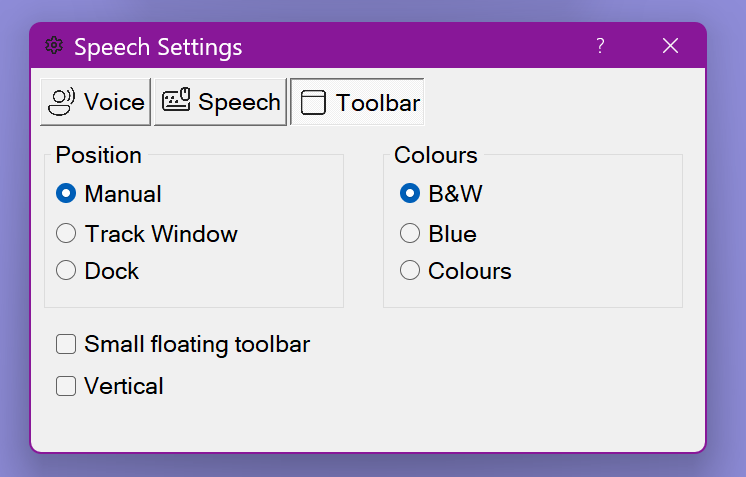
The Toolbar Display settings tab.
Colour
The Speech Toolbar can be shown in black and white, light blue, or full colour:
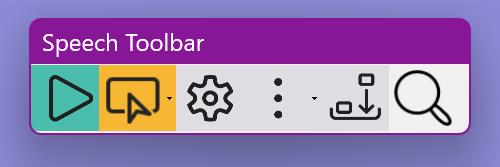
The three toolbar colour options.
Position
- Manual — drag the toolbar anywhere on screen
- Lock to active window — attaches to whichever window is currently in use
- Docked — pinned to the top left corner, horizontally or vertically
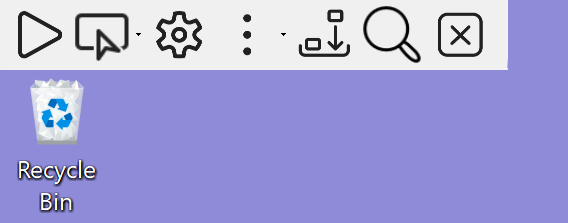
The Magnus Speech Toolbar docked to the screen edge.
System Requirements
What you need to run Sensory Magnus.
| Requirement | Detail |
|---|---|
| Operating System | Windows 11 |
| Memory (RAM) | 8 GB or more recommended |
| Download (Windows) | Free — Microsoft Store |
| iOS (iPhone / iPad) | Free camera magnifier for real-world use — App Store |
Getting Help
Contact Sensory App House for support with Magnus or any of our assistive technology products.